
Chrome extensions have completely changed how modern web designers work.
Today, more than 65% of global internet users use Google Chrome as their primary browser. That means most designers already spend hours inside Chrome every single day. At the same time, the demand for responsive and high-performance websites continues to grow worldwide. Because of this rising demand, designers must work faster, reduce errors, and improve efficiency in every project they handle.
Instead of switching between multiple software tools, you can use powerful browser add-ons to save time and improve accuracy. The right Chrome extensions can help you inspect fonts, pick colors, test responsiveness, audit performance, and even extract assets instantly. When you use the right tools, your workflow becomes smoother and more productive.
Now, let’s understand what Chrome extensions really are and why they matter so much for web designers.
About Chrome Extensions for Web Designers
Chrome extensions are small software tools that you install directly into your Chrome browser. They add extra features and help you perform specific tasks faster. Instead of opening separate apps or complex software, you can access these tools directly from your browser toolbar.
As a web designer, you already spend most of your time inside Chrome. You browse inspiration websites, inspect layouts, test responsiveness, and analyze competitor designs. So it makes sense to improve the browser itself. That is where Chrome Extensions for designers become powerful.
These extensions help you identify fonts, extract colors, inspect CSS, test screen sizes, and even audit performance. More importantly, they reduce repetitive tasks. You no longer need to manually check code or switch between tools again and again. Everything works inside your workflow.
Another key advantage is simplicity. Most extensions are lightweight and easy to use. You install them in seconds. Then you can start using them immediately without complex setup.
When you use the right Chrome Extensions for designers, you work faster, make fewer mistakes, and deliver better results.
We have listed! Best Chrome Extensions For Devs
What’s The Need for Chrome Extensions for Web Designers?
As a web designer, you handle many small tasks every day. You check fonts. You test layouts. You inspect colors. You review spacing. You analyze competitors. All these tasks take time. If you do them manually, they slow you down.
This is exactly why you need smart tools inside your browser.
Chrome Extensions for designers help you reduce extra steps. Instead of opening developer tools and digging into code, you can hover over a font and instantly know its details. Instead of guessing a color, you can pick it in one click. Instead of resizing your browser manually, you can test multiple screen sizes in seconds.
Moreover, today’s websites must be responsive, fast, and accessible. Clients expect high performance. Users expect smooth experiences. So you must test everything properly before launching a design. Extensions help you catch issues early.
Another important reason is productivity. When you save even 10–15 minutes per task, it adds up over time. You complete projects faster. You reduce errors. You improve accuracy.
In short, Chrome Extensions for designers are not just helpful tools. They are time-saving, accuracy-boosting solutions that improve your overall workflow.
How Chrome Extensions Improve a Designer’s Workflow
Your workflow as a web designer depends on speed and accuracy. If your process is slow, your projects get delayed. If your design details are wrong, the final result suffers. That’s why smart tools matter.
First, Chrome extensions reduce manual effort. For example, instead of opening developer tools and searching through CSS files, you can instantly inspect fonts, spacing, and styles. This saves time and keeps you focused.
Second, they improve accuracy. When you use tools for color picking, pixel comparison, or responsive testing, you reduce guesswork. You see exact values. You test real screen sizes. You compare designs properly.
Third, they help you test performance and accessibility early. Rather than waiting until development is finished, you can run quick audits and identify problems before they grow bigger.
Most importantly, Chrome Extensions for designers keep everything inside your browser. You do not switch between five different apps. You work smoothly in one place. This makes your workflow faster and less stressful.
When you use the right tools consistently, your design process becomes more organized, efficient, and professional.
Looking for? Famous Graphic Design Firms In The World
How to Choose the Right Chrome Extensions for Designers
Not every extension will improve your workflow. Some may even slow your browser down. So you need to choose wisely.
First, identify your daily tasks. Do you often inspect fonts? Do you work heavily with colors? Do you test responsiveness regularly? When you understand your needs, you can select tools that truly help you.
Second, check ratings and reviews in the Chrome Web Store. If many designers trust a tool, it is usually reliable. Also, make sure the extension is updated regularly. Outdated tools may cause performance issues.
Third, avoid installing too many similar tools. If two extensions do the same job, choose one. Too many add-ons can make Chrome slower.
You should also look for lightweight and easy-to-use tools. A good extension should save time, not create confusion.
When you carefully select the right Chrome Extensions for designer, you build a clean and powerful toolkit. This helps you stay focused, work efficiently, and deliver better results.
We have listed! AI Flyer Generator Tools To Simplify Your Design Process
1) WhatFont
As a web designer, you often visit a website and wonder, “What font is this?” Instead of opening developer tools and searching through code, you can simply use WhatFont. It allows you to identify fonts instantly by just hovering over the text.
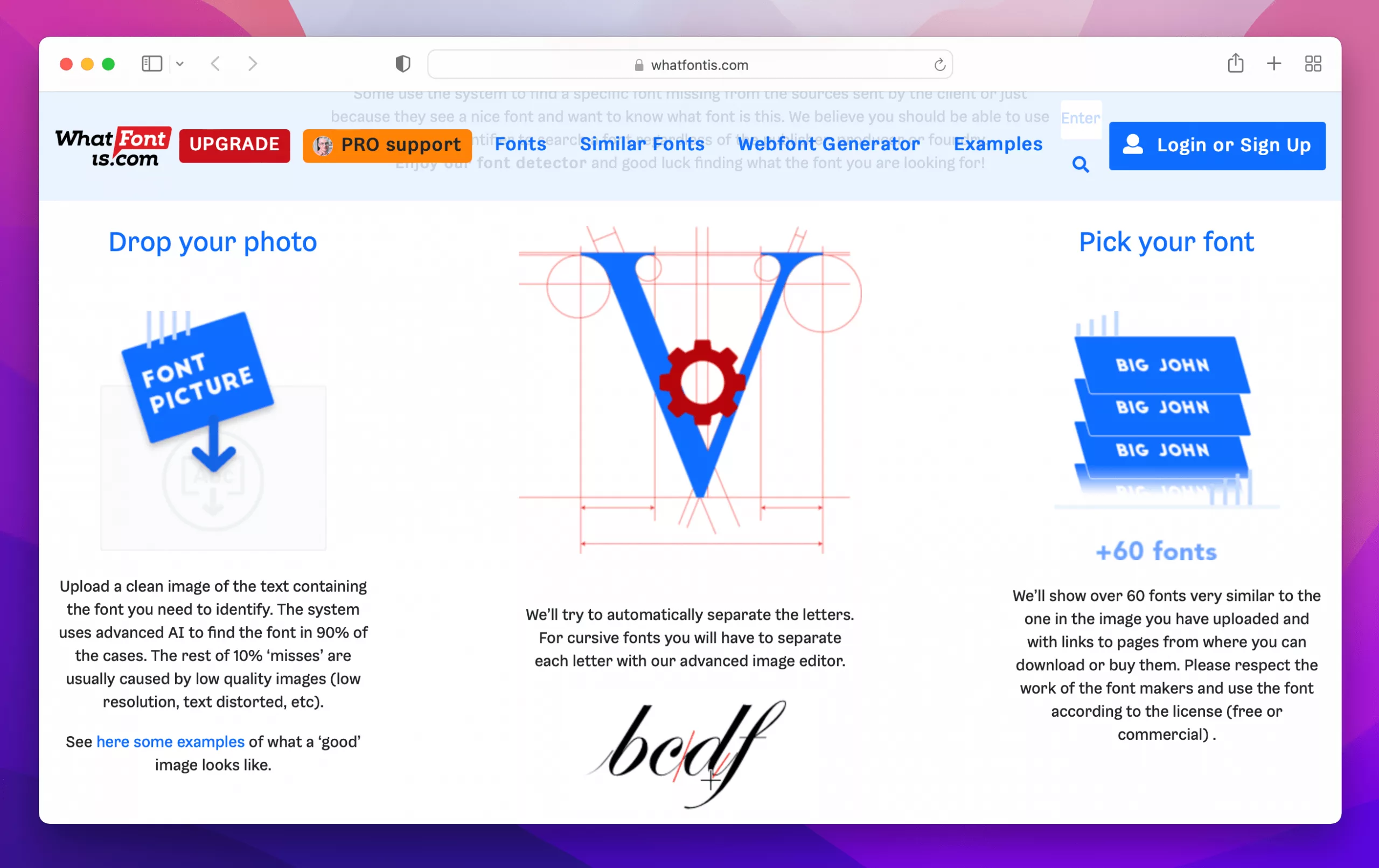
When you activate the extension, it turns your cursor into a font inspector. You move your mouse over any text on a webpage, and it immediately shows details like font family, size, weight, line height, and color. This saves you time and reduces frustration.
Many designers use WhatFont for inspiration and competitor research. If you find a beautiful typography style, you can quickly detect it and analyze how it is used. This helps you learn faster and improve your own design choices.
Moreover, the tool is simple and lightweight. It does not slow your browser. You install it once and use it whenever needed. Because of its simplicity and speed, WhatFont has become one of the most trusted Chrome tools for designers.
Features:
- Instantly identifies fonts by hovering
- Detects font family, size, and weight
- Works on live websites
- Clean and simple interface
- No need to inspect code manually
Best For:
Web designers who want quick and accurate font identification without digging into code.
2) ColorZilla
Color plays a major role in web design. You choose brand colors. You match backgrounds. You adjust gradients. But sometimes, you see a beautiful color on a website and you want to know its exact code. That is where ColorZilla becomes extremely helpful.
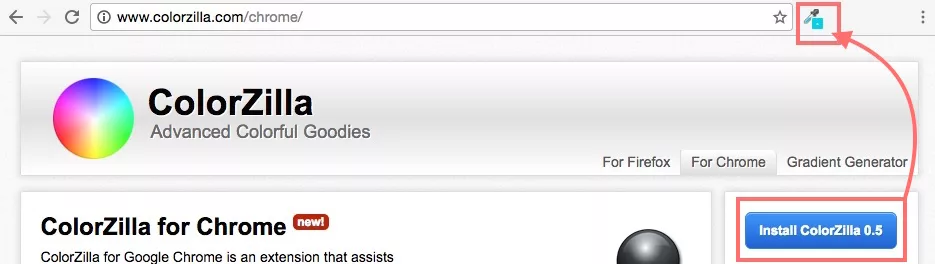
ColorZilla is a powerful color picker and eyedropper tool for Chrome. With one click, you can pick any color from a webpage and get its HEX, RGB, or HSL value. This makes your workflow faster and more accurate. Instead of guessing or manually checking styles, you instantly get precise color data.
Another powerful feature is its CSS gradient generator. If you are designing modern UI elements with gradients, this tool helps you create and copy the CSS code easily. It also keeps a history of recently picked colors, so you can reuse them quickly.
Designers love ColorZilla because it removes guesswork. You work with exact values. You stay consistent with branding. And you save a lot of time during the design process.
Features:
- Advanced color picker
- Eyedropper tool for webpages
- CSS gradient generator
- Palette and color history viewer
- Supports HEX, RGB, and HSL formats
Best For:
Designers who work heavily with brand colors and need precise color values instantly.
3) CSS Peeper
Sometimes, you visit a website and want to understand its design system. You may want to see its typography scale, color palette, spacing, or assets. Normally, you would open developer tools and dig through complex code. But if you are not a developer, that process can feel overwhelming.
This is where CSS Peeper helps you.
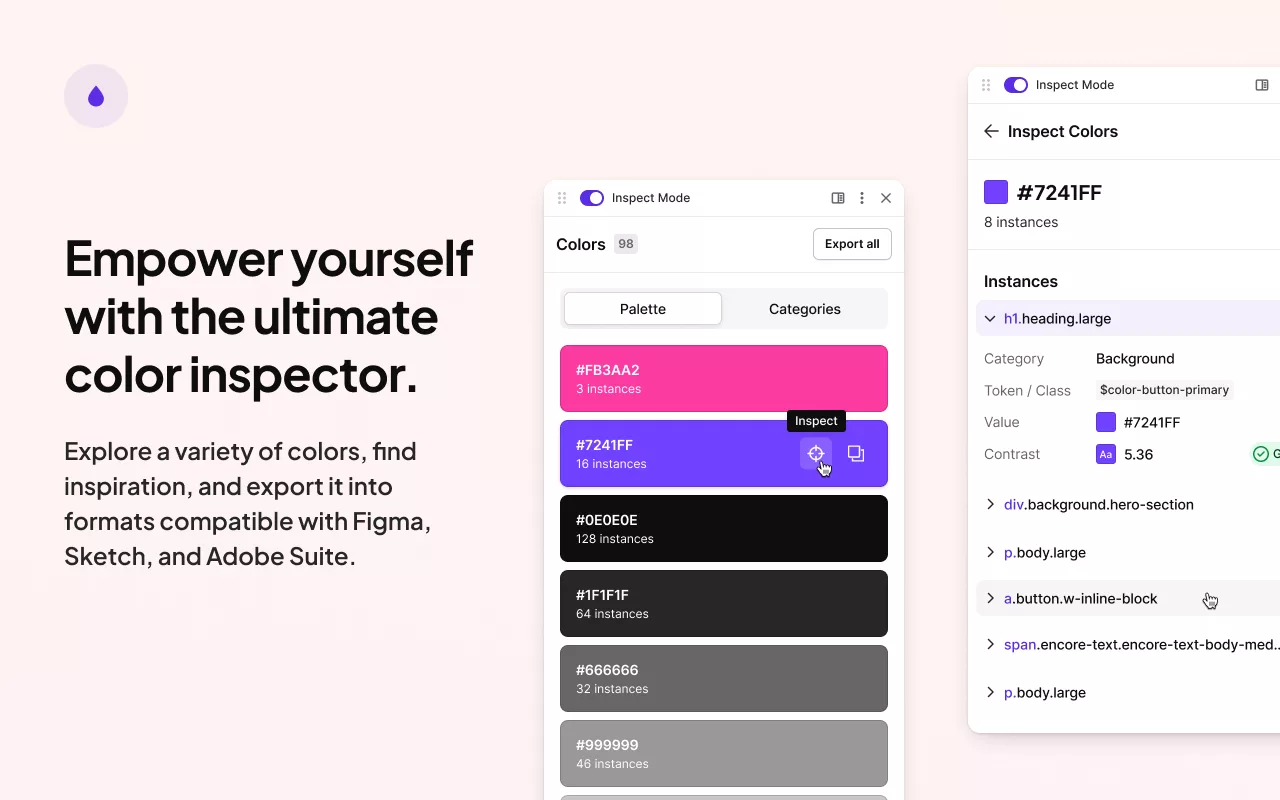
CSS Peeper is built especially for designers. It gives you a clean and visual way to inspect styles without diving deep into code. When you activate the extension, it shows you organized information about fonts, colors, images, and layout styles. Everything appears in a simple interface.
You can also extract design assets directly from the page. That means you save time when collecting inspiration or analyzing competitor websites. Instead of manually searching through CSS files, you get structured data in seconds.
Because of its designer-friendly approach, CSS Peeper makes inspection easier and less technical. It allows you to focus on design rather than code.
Features:
- Designer-focused CSS viewer
- Extracts colors and design assets
- Displays typography details clearly
- Clean and easy-to-read interface
- No deep coding knowledge required
Best For:
UI and visual designers who want to inspect styles quickly without digging into complex code.
4) Wappalyzer: Best Chrome Extensions for UI UX Designers
As a web designer, you often explore competitor websites. You may wonder what platform they are using. Is it WordPress? Shopify? React? How are they handling analytics or marketing tools? Instead of guessing, you can use Wappalyzer to get instant answers.
Wappalyzer detects the entire technology stack behind a website. With one click, it shows you the CMS, frameworks, programming languages, analytics tools, and even marketing integrations used on that site. This information helps you understand how modern websites are built.
If you work with clients, this tool becomes even more useful. When a client shows you a reference website, you can quickly identify its structure and suggest similar technologies. It also helps you stay updated with industry trends.
Most importantly, Wappalyzer works instantly. You click the extension icon, and it provides a structured list of technologies without requiring technical expertise. This makes research faster and more strategic.
Features:
- Detects CMS platforms
- Identifies frameworks and libraries
- Shows analytics and tracking tools
- Provides detailed tech stack insights
- Works instantly with one click
Best For:
Designers who analyze competitor websites and want to understand their technology stack quickly.
5) Window Resizer: Best Chrome tool for web designers
Responsive design is no longer optional. Today, users browse websites on mobiles, tablets, laptops, and large desktop screens. If your design does not adapt properly, users may leave immediately. That is why testing screen sizes is extremely important.
Window Resizer makes responsive testing simple and fast. Instead of manually dragging your browser window to different sizes, you can instantly switch between predefined screen resolutions. With just one click, you can test how your design looks on common devices like smartphones, tablets, and desktops.
You can also add custom resolutions based on your project needs. This gives you more control while testing layouts. It helps you spot alignment issues, spacing problems, and broken elements quickly.
Moreover, Window Resizer saves time during client reviews. You can easily demonstrate how a website behaves across devices without complicated setups.
Because responsive design is critical today, this extension becomes an essential part of your toolkit.
Features:
- Emulates different screen resolutions
- One-click switching between sizes
- Custom resolution settings
- Fast and lightweight tool
- Saves time during responsive testing
Best For:
Designers who focus on responsive layouts and want quick multi-device testing.
6) Muzli
As a web designer, you constantly need fresh ideas. Trends change quickly. UI styles evolve. New design patterns appear every day. If you do not stay updated, your work can start to feel outdated. That is where Muzli becomes very useful.
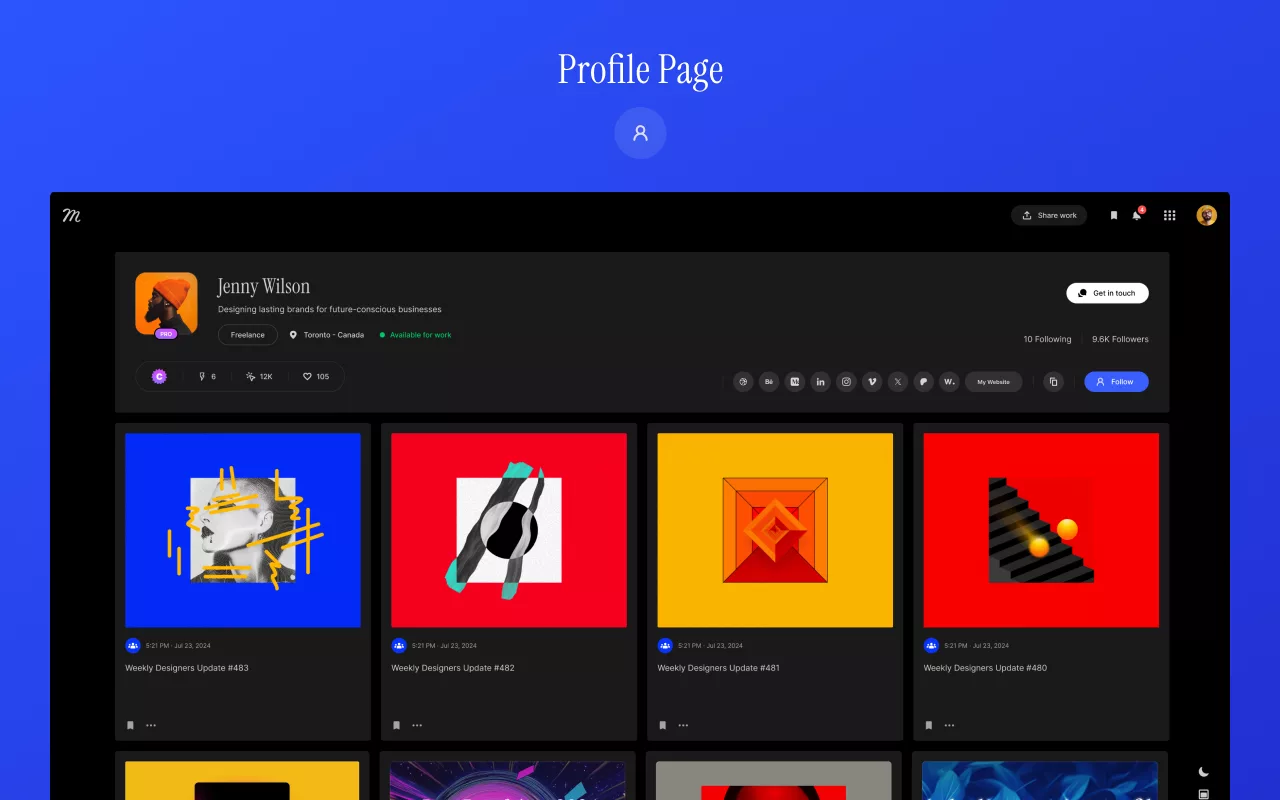
Muzli transforms your Chrome “New Tab” page into a daily feed of design inspiration. Every time you open a new tab, you see curated UI/UX trends, creative websites, case studies, and design articles. Instead of searching for inspiration manually, it comes to you automatically.
This saves time and keeps you creatively active. You discover new layouts, typography ideas, color combinations, and interaction styles without extra effort. It also helps you stay connected with the design community.
Another advantage is customization. You can adjust your feed based on your interests. Whether you focus on UI, branding, product design, or web trends, Muzli adapts to your preferences.
For designers who want daily creative energy, this tool makes inspiration part of their routine.
Features:
- Daily curated design inspiration
- UI/UX trends and case studies
- Creative articles and resources
- Customizable content feed
- Clean and modern new tab interface
Best For:
Designers who want consistent inspiration and want to stay updated with design trends.
7) GoFullPage
As a web designer, you often need to capture full-page screenshots. Maybe you want to save inspiration. Maybe you need to share a layout with a client. Or maybe you want to document a competitor’s landing page. Taking multiple screenshots manually can be frustrating.
GoFullPage solves this problem easily.
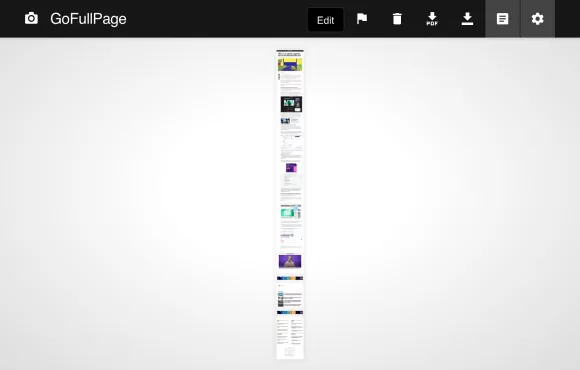
With just one click, it captures the entire webpage from top to bottom. You do not need to scroll and stitch images together. The extension automatically scrolls and creates one clean, high-resolution screenshot.
It also gives you export options like PNG or PDF. This makes sharing designs with clients or team members very simple. You can quickly attach screenshots to emails or presentations.
Another great benefit is its simplicity. You install it, click the icon, and it works. There is no complicated setup.
If you regularly document layouts or collect references, GoFullPage becomes an essential time-saving tool.
Features:
- Captures full-page screenshots instantly
- Automatic scrolling capture
- High-resolution output
- Export as PNG or PDF
- Easy one-click operation
Best For:
Designers who need clean, full-page screenshots for sharing, documentation, or inspiration.
8) PerfectPixel: Must have Chrome extensions for designers
As a web designer, you always aim for pixel-perfect results. However, when your design moves from mockup to live HTML, small differences often appear. Spacing may shift. Fonts may look slightly off. Alignment may break. These small issues can reduce the overall quality of your work.
That’s where PerfectPixel becomes extremely helpful.
PerfectPixel allows you to overlay your original design mockup on top of a live webpage. You can adjust the transparency and compare both versions pixel by pixel. This helps you quickly identify differences between your design and the final implementation.
Instead of guessing what went wrong, you see the exact misalignment. You can then communicate clearly with developers and fix issues faster.
This tool is especially useful during the final stages of a project. It ensures that your vision is executed accurately.
If you care about precision and detail, PerfectPixel helps you deliver professional results every time.
Features:
- Overlay transparent design mockups
- Adjustable opacity control
- Pixel-by-pixel comparison
- Improves alignment accuracy
- Ideal for front-end verification
Best For:
Designers who want precise comparison between mockups and live websites.
9) Lighthouse: Best Web design workflow tools for Chrome
Design is not only about visuals. A website must also load fast, be accessible, and follow SEO best practices. If your design looks beautiful but performs poorly, users may leave quickly. That is why testing performance is important.
Lighthouse is a powerful tool developed by Google. It audits your website and generates detailed reports on performance, accessibility, SEO, and best practices. With one click, you can analyze how your design behaves in real conditions.
The report shows page speed scores, loading issues, image optimization problems, and accessibility warnings. It also provides suggestions for improvement. This helps you make better design decisions before launching a website.
Even if you are not a developer, you can understand the results easily. The interface is clean and structured. You can share reports with developers to fix technical issues faster.
If you want to create fast and user-friendly websites, Lighthouse should be part of your design toolkit.
Features:
- Performance analysis reports
- Accessibility checks
- SEO audit suggestions
- Best practices evaluation
- Google-backed testing tool
Best For:
Designers who want to improve website performance, accessibility, and SEO quality.
10) SVG Export: Best Chrome Extensions for Web Design
As a web designer, you often work with vector graphics. SVG files are lightweight, scalable, and perfect for modern web design. However, extracting SVG assets from a live website can sometimes be difficult. You may need to inspect the code manually or search through page elements.
This is where SVG Export becomes very helpful.
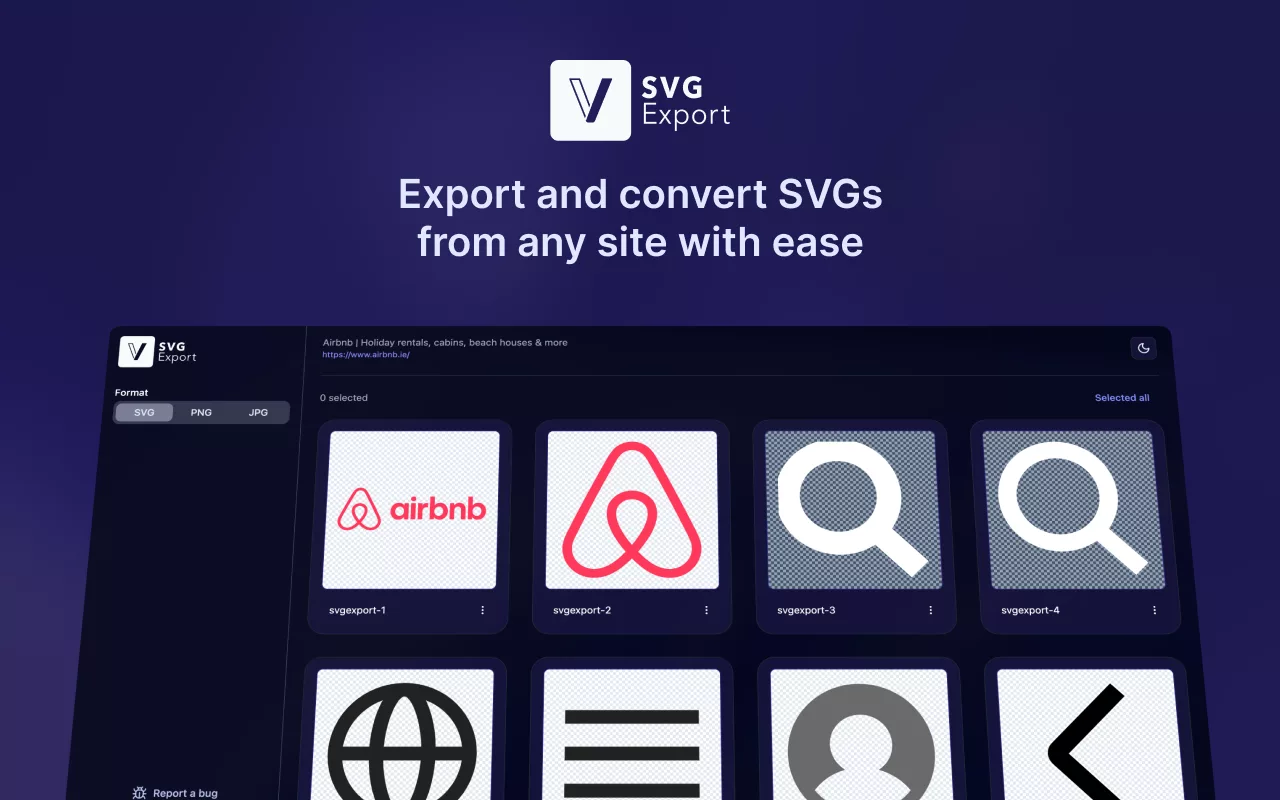
SVG Export quickly scans a webpage and finds all available SVG files. With just one click, you can preview and download them. Instead of manually digging through HTML and CSS, you get instant access to vector assets.
This tool is especially useful when you are collecting inspiration or analyzing competitor designs. It saves time and simplifies your asset collection process. You can download multiple SVGs at once and organize them easily.
Because SVG graphics are widely used in modern UI design, having a fast extraction tool improves your efficiency. It removes unnecessary steps and keeps your workflow smooth.
Features:
- Instantly finds SVG files on webpages
- Allows bulk SVG downloads
- Simple and easy interface
- Works on most modern websites
- Saves time during asset collection
Best For:
Designers who frequently work with vector graphics and need quick SVG extraction.
Benefits of Using Chrome Extensions for Designer
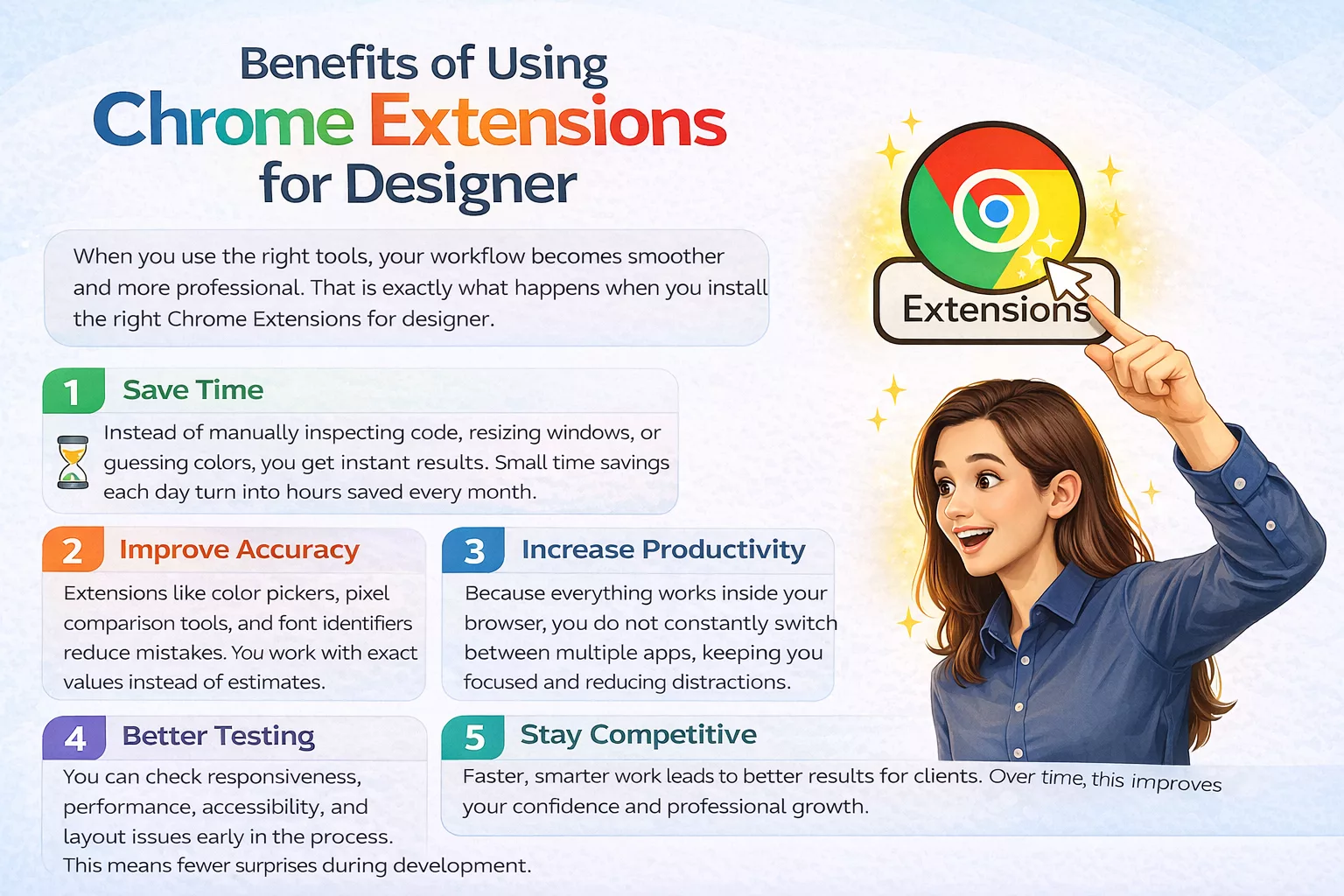
When you use the right tools, your workflow becomes smoother and more professional. That is exactly what happens when you install the right Chrome Extensions for designer.
First, you save time. Instead of manually inspecting code, resizing windows, or guessing colors, you get instant results. Small time savings each day turn into hours saved every month.
Second, you improve accuracy. Extensions like color pickers, pixel comparison tools, and font identifiers reduce mistakes. You work with exact values instead of estimates. This improves the quality of your final design.
Third, you increase productivity. Because everything works inside your browser, you do not constantly switch between multiple apps. This keeps you focused and reduces distractions.
Another big advantage is better testing. You can check responsiveness, performance, accessibility, and layout issues early in the process. That means fewer surprises during development.
Finally, these tools help you stay competitive. When you work faster and smarter, you deliver better results to clients. Over time, this improves your confidence and professional growth.
Using the right Chrome Extensions for designer is not just about convenience. It is about working smarter and designing better websites.
Common Mistakes Designers Make When Using Extensions
Chrome extensions are powerful. But if you use them the wrong way, they can slow you down instead of helping you.
First, many designers install too many extensions. It may feel productive at first. However, too many tools can make your browser slow and cluttered. Instead, you should only keep tools that you truly use.
Second, some designers ignore updates. Extensions need regular updates to fix bugs and improve security. If you skip updates, you may face performance or compatibility issues.
Another common mistake is installing multiple extensions that do the same job. For example, having two color pickers or two screenshot tools creates confusion. It is better to choose one reliable tool and stick with it.
Some designers also depend too much on tools. Extensions are helpful, but they should support your skills—not replace them. You still need to understand design basics like typography, spacing, and usability.
If you use Chrome Extensions for designer wisely, they improve your workflow. But if you overload your browser, they can reduce performance and focus.
Wrap up
Chrome extensions have become essential tools for modern designers who want to work faster and smarter.
Throughout this guide, you discovered how the right tools can save time, improve accuracy, and simplify your workflow. From identifying fonts and picking colors to testing responsiveness and auditing performance, each extension plays a specific role in improving your daily design process. More importantly, you learned how choosing the right Chrome Extensions for designer can help you stay productive without overwhelming your browser.
When you use these tools wisely, you reduce manual work, minimize errors, and deliver better results to your clients. Over time, this builds confidence and strengthens your professional skills.
Now that you understand the best extensions to use, the next natural step is learning how to build a complete web design workflow—from research to final launch. Mastering both tools and process will help you grow as a designer and create high-performing websites consistently.
FAQs
How Do You Manage Multiple Chrome Extensions Efficiently?
To manage multiple Chrome extensions efficiently, you need a simple system. First, review your extensions regularly and remove the ones you no longer use. Too many active tools can slow down your browser. Second, pin only your most important extensions to the toolbar and hide the rest to reduce clutter. Third, disable extensions that you use occasionally instead of keeping them active all the time.
Also, avoid installing multiple tools that perform the same function. Choose one reliable extension for each task. When you stay organized, your browser remains fast, clean, and easier to manage.
Which Chrome Extensions Are Best for UI/UX Research?
If you focus on UI/UX research, you need extensions that help you analyze design structure, performance, and trends quickly. Tools like Wappalyzer allow you to understand the technology behind a website, which is helpful during competitor research.
Lighthouse helps you evaluate performance, accessibility, and usability factors that directly impact user experience.
For visual inspiration and trend tracking, Muzli keeps you updated with the latest UI/UX ideas. You can also use full-page screenshot tools to study layouts in detail. Together, these extensions make your research process faster, more organized, and more data-driven.