


You tap Share, choose AirDrop, and wait. Nothing shows up. Or worse, the other person’s phone is right there and your iPhone acts like it does not exist. AirDrop failures are frustrating because the feature gives you almost no error message to work with, just silence. The good news: almost every AirDrop problem comes down to a short list of settings, radios, and distance rules, and once you know how the feature actually works under the hood, fixing it takes minutes.
This guide explains how AirDrop really transfers your files, what changed with the new AirDrop codes in iOS 26.2, the most common reasons it stops working, and a step-by-step checklist to get it working again on iPhone, iPad, and Mac.
What Is AirDrop and How Does It Work?
AirDrop is Apple’s built-in way to send photos, videos, documents, links, and more between nearby Apple devices. You will find it inside the Share sheet on iPhone, iPad, and Mac, and it works without any setup beyond a couple of toggles.
What makes AirDrop feel instant is the way it combines two radios. According to Apple’s platform security documentation, AirDrop uses Bluetooth Low Energy to discover nearby devices, then creates a peer-to-peer Wi-Fi connection between them for the actual transfer. That direct Wi-Fi link is why large videos move in seconds instead of crawling over Bluetooth, and why both Wi-Fi and Bluetooth need to be switched on for AirDrop to work at all.
On the security side, the connection is protected with TLS, and Apple devices use iCloud-backed identity information to decide whether the other person is a contact. When both devices are signed into iCloud, AirDrop compares short identity hashes tied to the email addresses and phone numbers on each Apple Account. If they match a contact, you see the person’s name and photo. If they do not match, the device shows up as a generic silhouette under “Other People” instead.
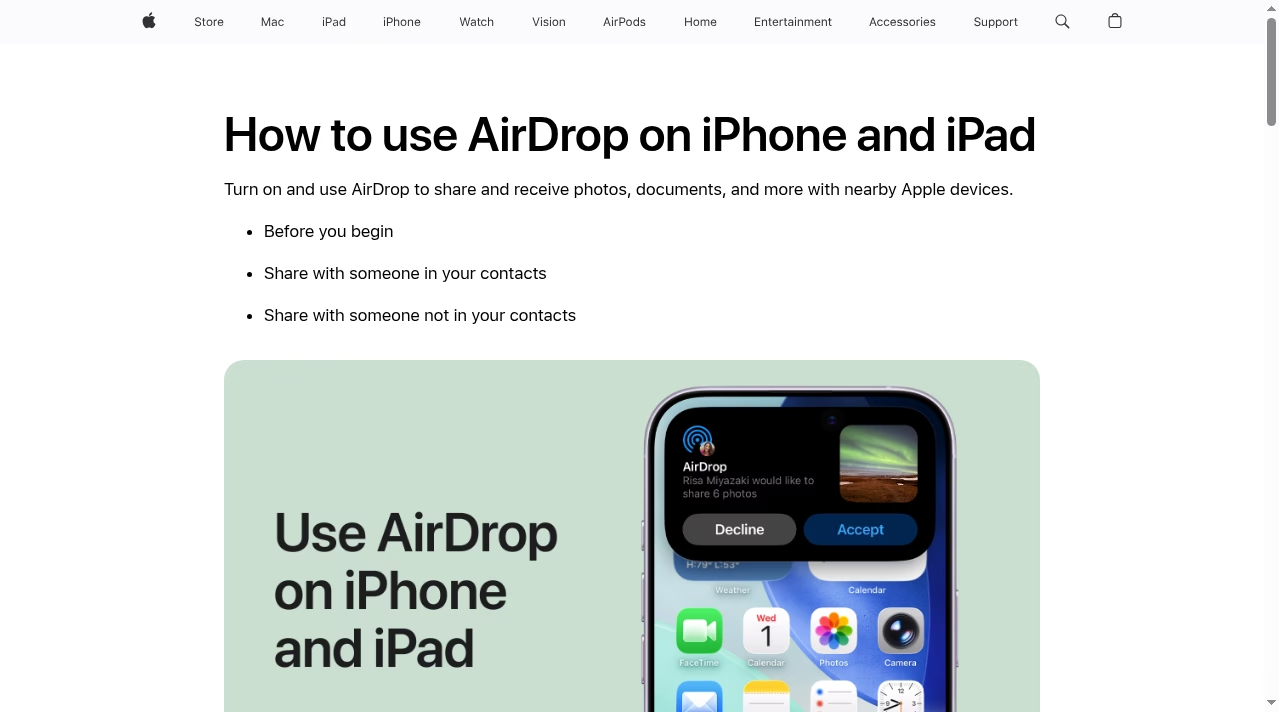
You can AirDrop almost anything that has a Share button: photos and videos from the Photos app, files from the Files app, Safari links, notes, voice memos, map locations, contacts, and even app-store links. On iOS 17 and later there is also a gesture shortcut: bring the tops of two iPhones close together to start a transfer (the same gesture that powers NameDrop for contact cards), which skips the share-sheet hunt entirely.
This design explains the two behaviors that confuse people most. First, AirDrop only works at short range, because Bluetooth discovery fades quickly beyond roughly 9 to 10 metres. Second, whether someone can see your device at all depends entirely on your receiving setting, which is where most “AirDrop not working” stories begin.
AirDrop Visibility Settings, Explained
AirDrop has three receiving modes, and picking the wrong one is the single most common reason a device refuses to appear:
- Receiving Off: Nobody can see your device, and you cannot receive anything.
- Contacts Only: Only people saved in your contacts can see your device. Both sides need to be signed into iCloud, and the sender’s Apple Account email or phone number must be in your contact card.
- Everyone for 10 Minutes: Any nearby Apple device can see yours, but only for ten minutes. After that, it quietly switches back to Contacts Only if you are signed into iCloud, or to Receiving Off if you are not.
Which mode should you actually use day to day? Contacts Only for almost everyone, almost all the time. It keeps strangers out while keeping transfers instant for the people you actually know. Receiving Off makes sense if you never use the feature or want one less thing announcing itself over Bluetooth. Everyone for 10 Minutes is the troubleshooting tool and the conference-room tool, not a permanent state.
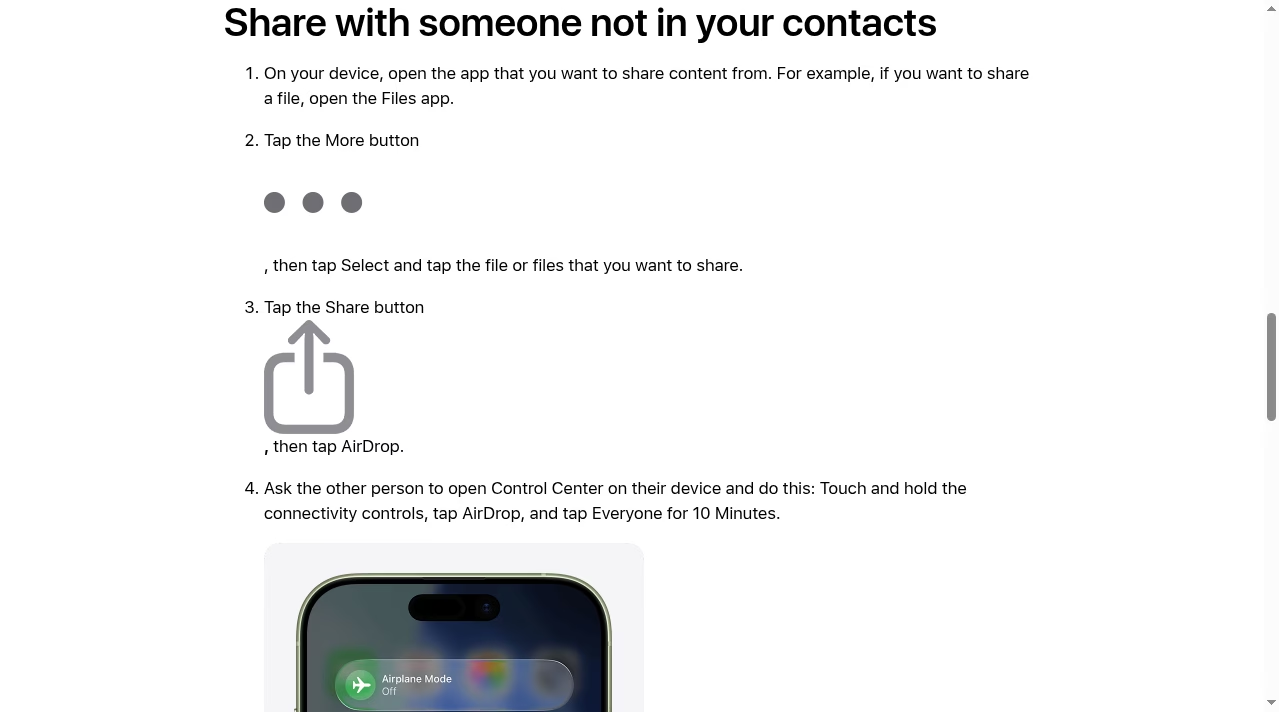
To change the setting, open Control Center, touch and hold the connectivity panel (the box with Airplane Mode, Wi-Fi, and Bluetooth), then tap AirDrop and choose the mode you want. You can also find it under Settings > General > AirDrop.
On the receiving end, a transfer arrives as a preview with Accept and Decline buttons. Accept it, and the file lands in the app that matches its type: photos go to the Photos app, documents open a location picker or land in Files, and links open in Safari. If you AirDrop something to yourself between your own devices signed into the same Apple Account, there is no Accept prompt at all; it just appears, which makes AirDrop the fastest way to move a screenshot from iPhone to Mac.
The ten-minute timer on “Everyone” catches people constantly. You set it up for a quick transfer, get distracted, and by the time your friend actually tries to send, your phone has flipped back to Contacts Only and they are invisible to you again. If you share files with the same person regularly, the cleaner fix is to add each other as contacts, or use the new AirDrop codes feature described next.
One related quirk: if you use the Apple ecosystem alongside group messaging apps like GroupMe or WhatsApp to share photos, remember that AirDrop transfers the full-resolution original while most chat apps compress media heavily. That quality difference is exactly why it is worth fixing AirDrop instead of giving up on it.
New in iOS 26.2: AirDrop Codes
Apple added a genuinely useful new option in iOS 26.2: AirDrop codes. It solves the awkward middle ground between Contacts Only (too restrictive) and Everyone (too open, and timed).
Here is how it works. When someone who is not in your contacts wants to send you a file, you open the AirDrop settings and tap “Get AirDrop Code”. Your iPhone shows a short code. The sender selects your device in the share sheet, enters that code, and the transfer goes through. No need to flip your phone to Everyone, no need to swap contact cards with a stranger at a conference.
Even better, once you have shared a code with someone, they are added to an “Other Known List” that stays valid for 30 days. During that window they can AirDrop to you without a new code, even with your receiving set to Contacts Only. You can review and manage that list under Settings > General > AirDrop, and remove anyone early if you want.
For anyone who regularly receives files from clients, classmates, or coworkers they do not want in their personal contacts, this is the fix Apple should have shipped years ago. It is also a privacy improvement over leaving Everyone mode on in public places, something parents will appreciate alongside the existing Communication Safety protections that blur sensitive images children receive.
Why Is AirDrop Not Working? 9 Common Causes
When AirDrop fails, it almost always traces back to one of these. The table maps each symptom to its most likely cause and where to fix it:
| Symptom | Likely cause | Where to fix it |
|---|---|---|
| Other device does not appear at all | Receiving set to Off or Contacts Only | Control Center > AirDrop > Everyone for 10 Minutes |
| Device appears, then vanishes | The 10-minute Everyone window expired | Re-enable Everyone, or use an AirDrop code |
| Transfer spins forever, never starts | Wi-Fi or Bluetooth toggled off | Control Center, turn both radios fully on |
| AirDrop option missing from share sheet | Restricted in Screen Time | Settings > Screen Time > Content & Privacy Restrictions > Allowed Apps |
| Works for small files, fails on videos | Personal Hotspot interfering with peer-to-peer Wi-Fi | Settings > Personal Hotspot > Off |
| Contact shows as a silhouette, not a name | iCloud identity mismatch | Check both Apple Accounts and the saved contact email or number |
| Nothing happens between iPhone and Mac | Mac firewall or older Mac discovery mode | System Settings > Network > Firewall; AirDrop window in Finder |
| Failed right after an iOS update | Radios stuck in a bad state | Restart both devices |
| Declined transfer you never saw | Devices too far apart or asleep | Keep both devices awake and within a few metres |
Two rows deserve extra detail. The Screen Time one surprises parents most often: if AirDrop is missing entirely from the share sheet, go to Settings > Screen Time > Content & Privacy Restrictions > Allowed Apps & Features and make sure AirDrop is allowed. A device managed by a school or employer can hide it the same way. And the “contact shows as silhouette” row is not a bug; it is AirDrop telling you the iCloud identity check failed, which usually means your friend has a different email or phone number on their Apple Account than the one you saved. Updating the contact card fixes it permanently.
Notice how few of these involve anything actually being broken. AirDrop’s failure mode is almost always configuration, not hardware.
The 8-Step AirDrop Fix Checklist
If you just want the fastest path back to a working transfer, run through these eight steps in order. They are ordered from most likely to least likely, and the first four solve the large majority of cases.
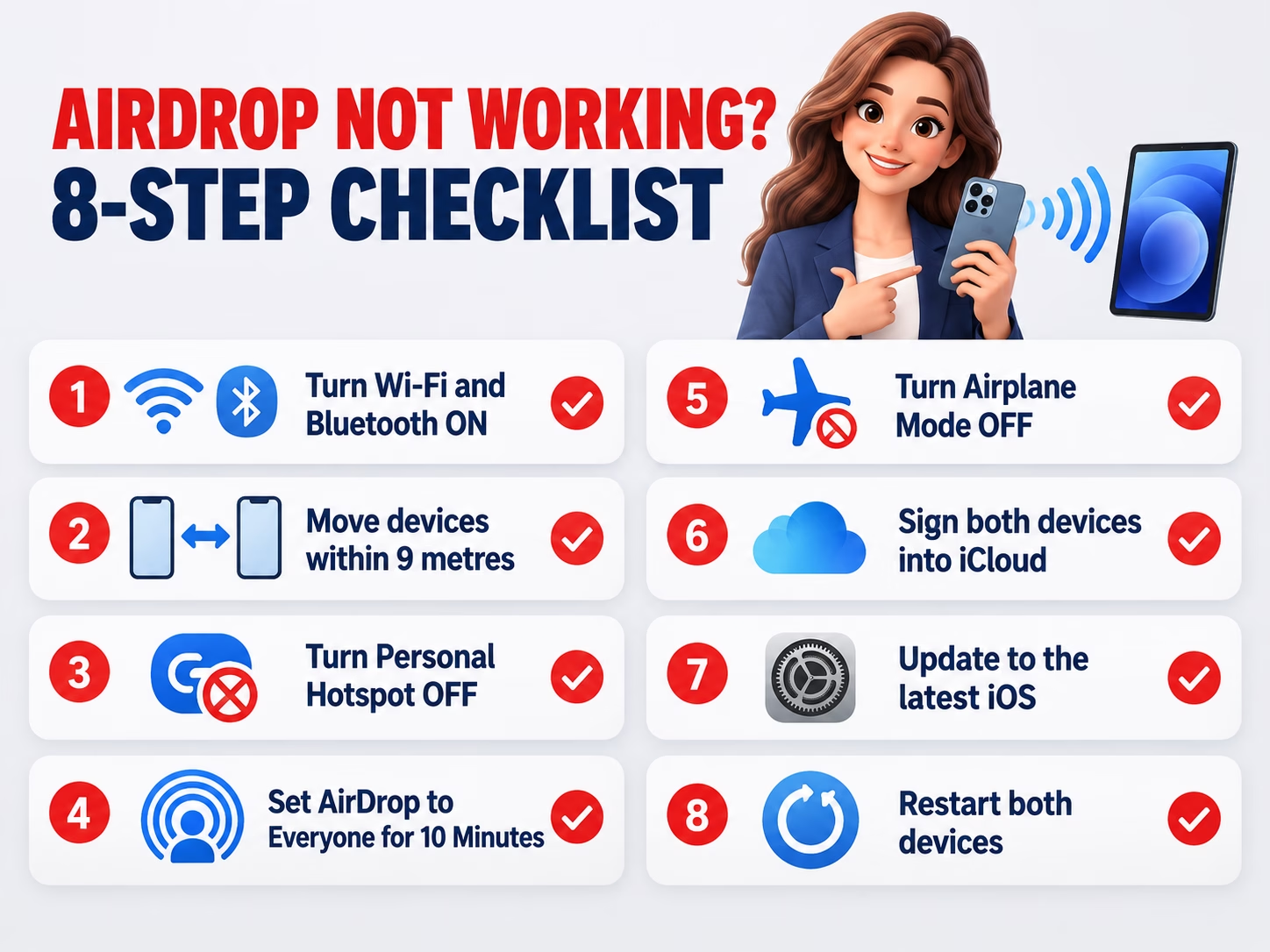
- Turn Wi-Fi and Bluetooth fully on. Not just off-and-on in Control Center; check Settings to make sure neither is disabled. AirDrop needs both radios alive.
- Bring the devices within about 9 metres. Bluetooth discovery is short range. Same room is ideal, and keep both screens awake during the transfer.
- Turn Personal Hotspot off. A running hotspot monopolizes the Wi-Fi hardware AirDrop needs for its peer-to-peer link. Settings > Personal Hotspot > off.
- Set the receiver to Everyone for 10 Minutes. This bypasses every contact-matching issue in one move. If the transfer works now, your problem was visibility, not hardware.
- Make sure Airplane Mode is off. Obvious, but it silently kills both radios, and a quick toggle of Airplane Mode on and off can also reset a stuck connection.
- Confirm both devices are signed into iCloud. Contacts Only mode depends on it. If one device is signed out, use Everyone mode or an AirDrop code instead.
- Update to the latest iOS, iPadOS, or macOS. Apple fixes AirDrop bugs in point releases regularly, and features like AirDrop codes require iOS 26.2 or later.
- Restart both devices. The classic for a reason: it clears stuck Bluetooth and Wi-Fi states that toggles cannot reach.
A note on step 4: if Everyone mode makes you uneasy, that instinct is right for public places, and it is exactly what AirDrop codes exist to solve. Use Everyone for a one-off test, confirm visibility was the issue, then switch back to Contacts Only and set up a code for any regular sender. You get a working transfer without leaving the door open.
Still stuck after all eight? Reset network settings on the iPhone (Settings > General > Transfer or Reset iPhone > Reset > Reset Network Settings). You will need to re-enter Wi-Fi passwords afterward, but it clears deeper radio configuration problems.
AirDrop Not Working on a Mac? Try These Extra Checks
Everything above applies to the Mac too, but macOS adds a few failure points of its own:
Check the Firewall. Go to System Settings > Network > Firewall. If the firewall is on, open its options and make sure “Block all incoming connections” is not checked. That setting blocks AirDrop discovery entirely.
Open an AirDrop window in Finder. On older macOS versions, a Mac only becomes discoverable while the AirDrop window (Finder > Go > AirDrop) is open. Newer versions listen all the time, but opening the window is still a quick way to force discovery, and it shows the “Allow me to be discovered by” setting at the bottom.
Watch for very old hardware. AirDrop between two Macs requires models from roughly 2012 onward (with some exceptions), and iPhone-to-Mac transfers need a Mac from 2012 or later running a modern macOS. If one side of the pair is a truly ancient machine, no setting will save it.
Know where received files land. On a Mac, everything you accept via AirDrop goes straight to the Downloads folder, not to Photos or the desktop. A surprising number of “AirDrop failed” reports turn out to be successful transfers sitting unnoticed in Downloads.
Sign into the same network context. Macs connected to strict enterprise networks sometimes have peer-to-peer Wi-Fi restricted. If you suspect the network is the problem, test the same transfer on a home network or hotspot-free environment before blaming the Mac.
Is AirDrop Safe to Use?
Short answer: yes, with sensible settings. Transfers are encrypted with TLS over that direct peer-to-peer Wi-Fi link, so the person in the next coffee-shop seat cannot simply sniff your photos out of the air.
The real-world risk is not interception, it is unsolicited receives. Leaving AirDrop set to Everyone in crowded public places is how people end up with random files and spammy images from strangers, a problem common enough that it got its own slang (“cyber-flashing”). Apple’s mitigations: Everyone mode times out after 10 minutes, received items require an explicit Accept tap, unknown senders appear as silhouettes rather than names, and Communication Safety can blur sensitive images sent to children.
There is also a quieter privacy detail worth knowing: because discovery happens over Bluetooth, your device is effectively announcing its presence while set to Everyone. Security researchers have pointed out for years that the contact-matching exchange can leak hashed phone or email identifiers to a determined nearby attacker. For most people this is a theoretical concern, but it is one more reason not to treat Everyone mode as an everyday default.
The sensible setup is Contacts Only as your everyday default, Everyone for 10 Minutes only when you actually need it, and AirDrop codes for recurring exchanges with people outside your contacts. If you care about privacy in your messaging layer too, our honest look at Proton Mail and our guide to endpoint security are worth a read. Keeping your Apple Account itself locked down matters just as much as the transfer encryption.
Best AirDrop Alternatives When Nothing Works
Sometimes the honest answer is that the two devices will not cooperate today, or the other person does not use Apple hardware at all. AirDrop is Apple-only, so mixed iPhone-and-Android households need something else anyway. We keep full write-ups on most of these in our apps topic hub. Good fallbacks:
- Quick Share (Android and Windows): Google’s equivalent works between Android phones, Chromebooks, and Windows PCs with the Quick Share app installed, using the same Bluetooth-plus-direct-Wi-Fi idea. It is the obvious choice when one side is not an Apple device. If the jargon around these wireless standards ever gets dense, our tech glossary untangles the terms.
- Cloud links: Our roundup of ways to send large files online for free covers the reliable options when the file is too big or the distance is too far for AirDrop.
- Messaging apps: Fine for quick shares where compression does not matter. WhatsApp, Slack, and Zoom chat all handle files, and if you are curious how texting itself is evolving, our explainer on SMS and RCS covers why Android-to-iPhone sharing keeps improving.
- Workspace tools: If the file is headed for a team anyway, dropping it straight into Notion or a shared drive skips the transfer problem altogether.
- A cable: Unglamorous, but a USB-C cable between a phone and a computer never asks you to check your Bluetooth radio.
Frequently Asked Questions
Why can’t I see the other person’s iPhone on AirDrop?
Almost always a visibility setting. Their device is either on Receiving Off, on Contacts Only without your details matching their contact card, or the 10-minute Everyone window expired. Ask them to open Control Center, hold the connectivity panel, tap AirDrop, and switch to Everyone for 10 Minutes. If you will share files regularly, use an AirDrop code or add each other as contacts instead.
Does AirDrop need Wi-Fi or internet?
AirDrop needs the Wi-Fi and Bluetooth radios switched on, but it does not need an internet connection. It creates its own direct peer-to-peer Wi-Fi link between the two devices, so it works on a plane, in a basement, or anywhere with no network at all.
How far does AirDrop reach?
Discovery runs over Bluetooth Low Energy, so in practice you want the devices within about 9 to 10 metres, ideally in the same room with screens awake. Walls and interference shorten that range noticeably.
Why does my AirDrop keep saying “Waiting”?
“Waiting” means the devices found each other but the transfer has not started. The usual culprits are a Personal Hotspot running on either device, one screen going to sleep, or a stuck radio. Turn off the hotspot, wake both screens, and if it persists, restart both devices.
Can I AirDrop from iPhone to Android or Windows?
No. AirDrop only works between Apple devices. For cross-platform transfers use Quick Share, a cloud link, or one of the large-file services we covered in our file-sharing guide.
Does AirDrop reduce photo or video quality?
No. AirDrop sends the original file at full resolution, including metadata. That is one of its biggest advantages over messaging apps, which typically compress images and videos heavily unless you specifically send them as documents.
Where do AirDrop files go on iPhone and Mac?
On iPhone and iPad, accepted files open in the matching app: photos to Photos, documents to Files, links to Safari. On Mac, everything goes to the Downloads folder. Self-transfers between your own devices on the same Apple Account skip the Accept step entirely.
What is an AirDrop code and where do I find it?
On iOS 26.2 and later, open Settings > General > AirDrop and tap “Get AirDrop Code”. Give that code to the sender, they enter it when selecting your device, and the transfer completes without you switching to Everyone mode. Approved senders stay on your Other Known List for 30 days, manageable in the same settings screen.
The Bottom Line
AirDrop is one of the best features in the Apple ecosystem when it works, and one of the most opaque when it does not. The fix is rarely dramatic: check the visibility setting first, then the radios, then the hotspot, and let the 8-step checklist above walk you through the rest. And if you share files with the same non-contacts often, the new AirDrop codes in iOS 26.2 finally remove the daily friction. For more practical app guides, browse our tech updates and app reviews, or start from the blog and our latest app review coverage.