

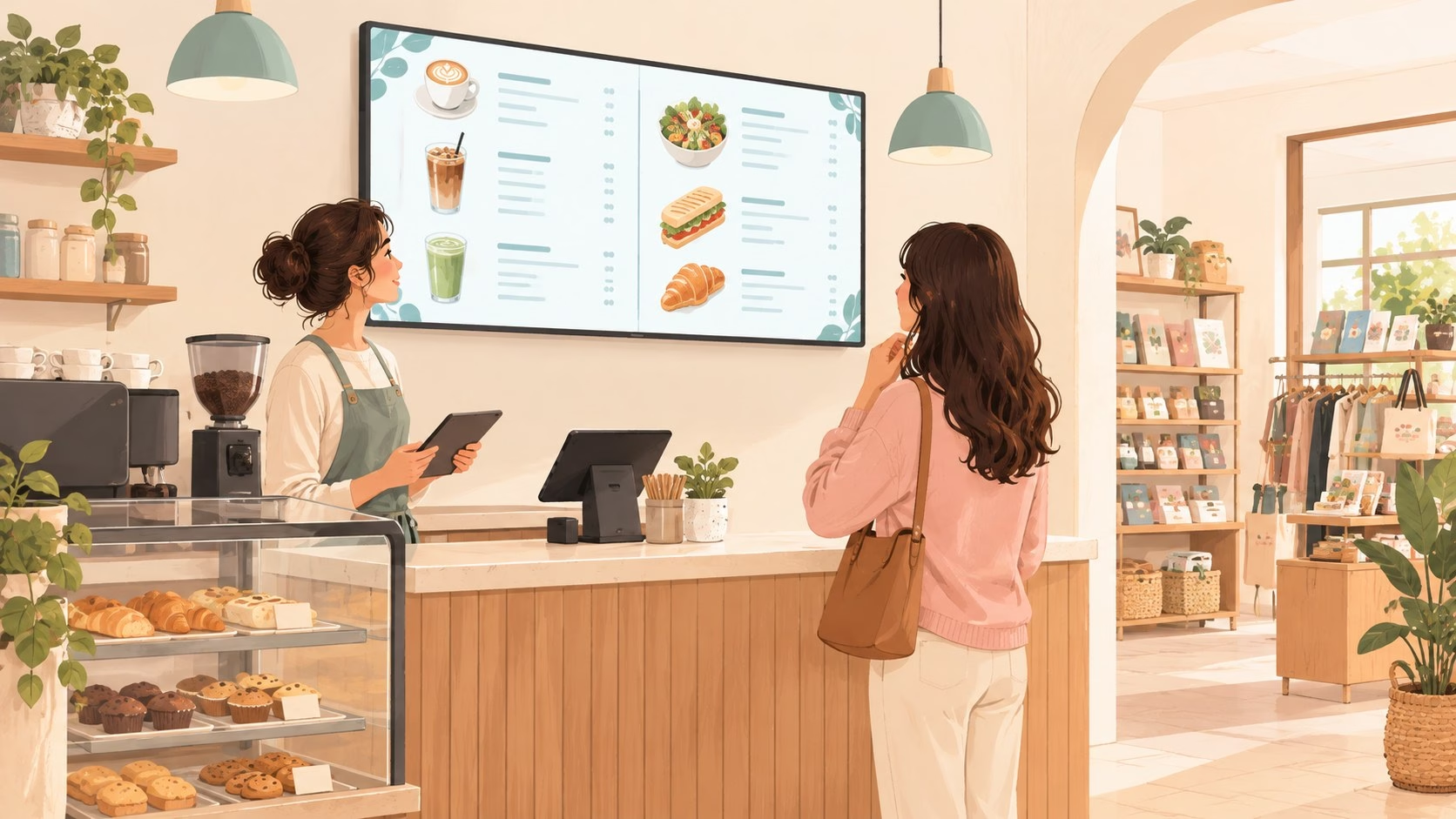
A café needs its breakfast menu to disappear before lunch. A shop needs a promotion on three screens without somebody walking around with a USB stick. An office needs announcements that stay current after the person who made them goes home. Those are different jobs, even though all three use digital signage solutions.
Digital signage software lets you organize content, schedule when it plays and manage the devices connected to your displays. The display itself is only one part of the purchase. You also need a compatible player, dependable connectivity and a person responsible for keeping the message accurate.
For a small business, our starting shortlist is Yodeck for a single-screen pilot, OptiSigns for flexible device options, ScreenCloud for managed workplace communication, and TelemetryTV for device-focused control. These are editorial recommendations based on official documentation, not hands-on performance awards. The best choice depends on your existing hardware, content and billing preference.
Documentation was checked on October 9, 2026, and prices were rechecked on October 12, 2026. Prices below are in USD, before any tax, hardware, shipping or installation charges. Annual rates are monthly equivalents, not month-to-month commitments.
1. Compare the digital signage solutions before buying a screen
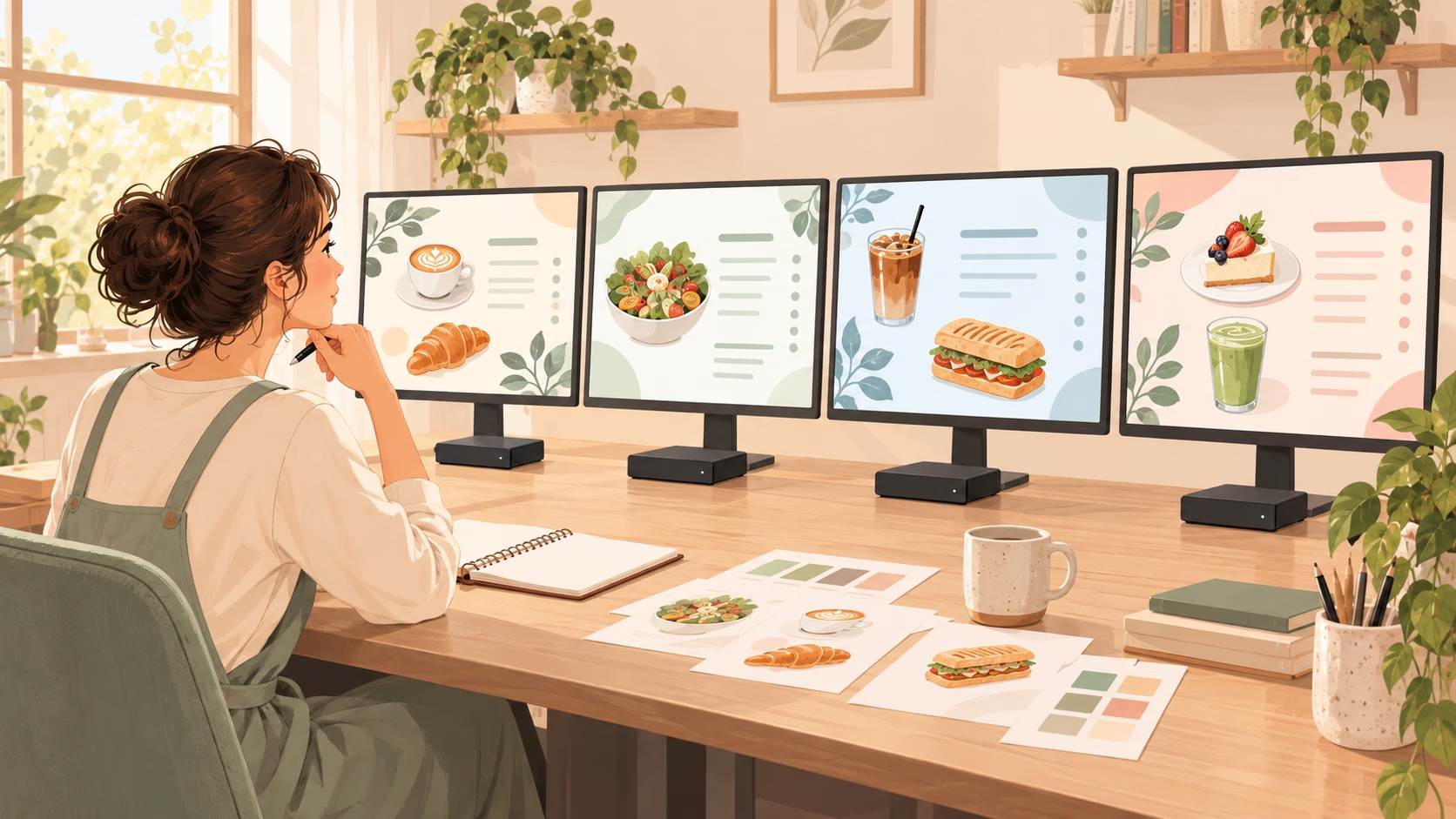
Start with the task, then the device, then the subscription. If you reverse that order, a cheap streaming stick can leave you paying for a plan you did not need. A free plan may also exclude the television you already own.
A menu board is a good first project because its success is easy to observe: the right prices appear at the right time. Our restaurant business ideas guide gives broader business context, but the signage decision should stay focused on the actual service counter.
Retailers should separate promotions from operational records. A screen advertises an offer; it is not an inventory system. If you need stock accuracy first, compare inventory management software before promising automated stock messages on your displays.
We compared published entry prices, billing units, free-plan restrictions, trial duration and hardware documentation. We did not run uptime tests, benchmark video playback or verify each integration in a live account. Marketing claims about sales lifts and engagement are deliberately excluded.
2. Yodeck: a practical place to start with one screen
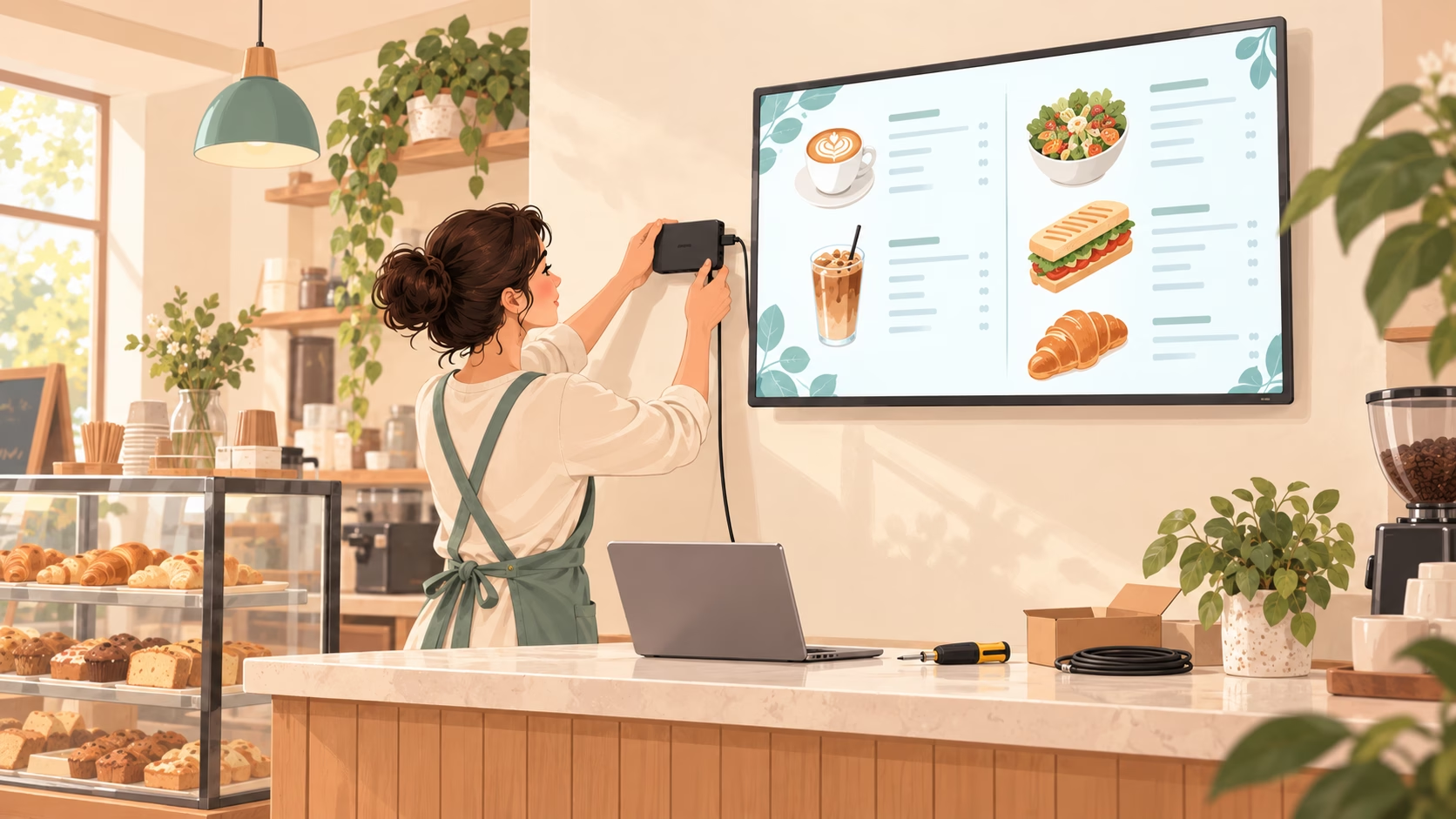
Yodeck makes sense when you want to test one menu board, reception display or promotional screen without paying a software subscription immediately. Its official pricing page lists a permanent free plan for one screen, with Basic features, unlimited file storage and unlimited users.
The important detail is what happens when the pilot grows. Yodeck says that once you use more than one screen, you need a paid subscription for all screens. Do not budget a free first screen plus paid additional screens. Three screens on Basic at $8 each means $24 per month in software, not $16.
Pricing, trial and included hardware
The published USD plans are Basic at $8, Premium at $12 and Enterprise at $16 per screen per month. Annual subscriptions include a Yodeck player per screen: the displayed Basic annual plan includes a 1GB RAM player, while Premium and Enterprise show a 4GB RAM player. That hardware benefit belongs to the annual offer, not the free account.
The current signup offer provides 30 days of full-feature access on up to five screens without a credit card. Treat that as a trial, not five permanent free licenses. Compare the features you used during the trial with the plan you actually intend to keep.
Setup and reasons to choose it
The official Yodeck pricing and hardware comparison lists its dedicated players, Raspberry Pi options, Windows support and a web player for suitable Chrome-based browsers. Hardware compatibility is not a promise that every smart TV behaves identically. A dedicated player is often the easier deployment to support when staff should not have to troubleshoot a TV browser.
Basic includes layouts, playlists and basic scheduling. Premium adds advanced scheduling, Microsoft 365 and Google apps, data visualization and API capabilities. A static café menu may not need those extras. A live office dashboard might. For broader infrastructure planning, our small-business cloud strategy discussion explains why software dependencies deserve attention before rollout.
Choose Yodeck when the single-screen free route or annual player bundle matches your needs. Ask about shipping, regional availability and the exact supplied player before treating the hardware as a complete zero-cost installation. You still need the screen, mount, power and network.
3. OptiSigns: flexible devices, with a free-plan catch
OptiSigns is worth shortlisting when you already own different devices or expect to mix menu boards, promotions and information screens. Its Standard plan includes playlists, scheduling, split-screen zones, a content designer, templates and apps. The official monthly price is $10 per screen; the annual equivalent is $9.
The free plan is unusually useful for a small pilot, but unusually easy to misunderstand. It supports up to three screens, 25 basic apps and 1GB storage, and includes the OptiSigns logo on screen. That branding may be acceptable in a back office and inappropriate at a premium service counter.
The free plan does not support every paid-plan device
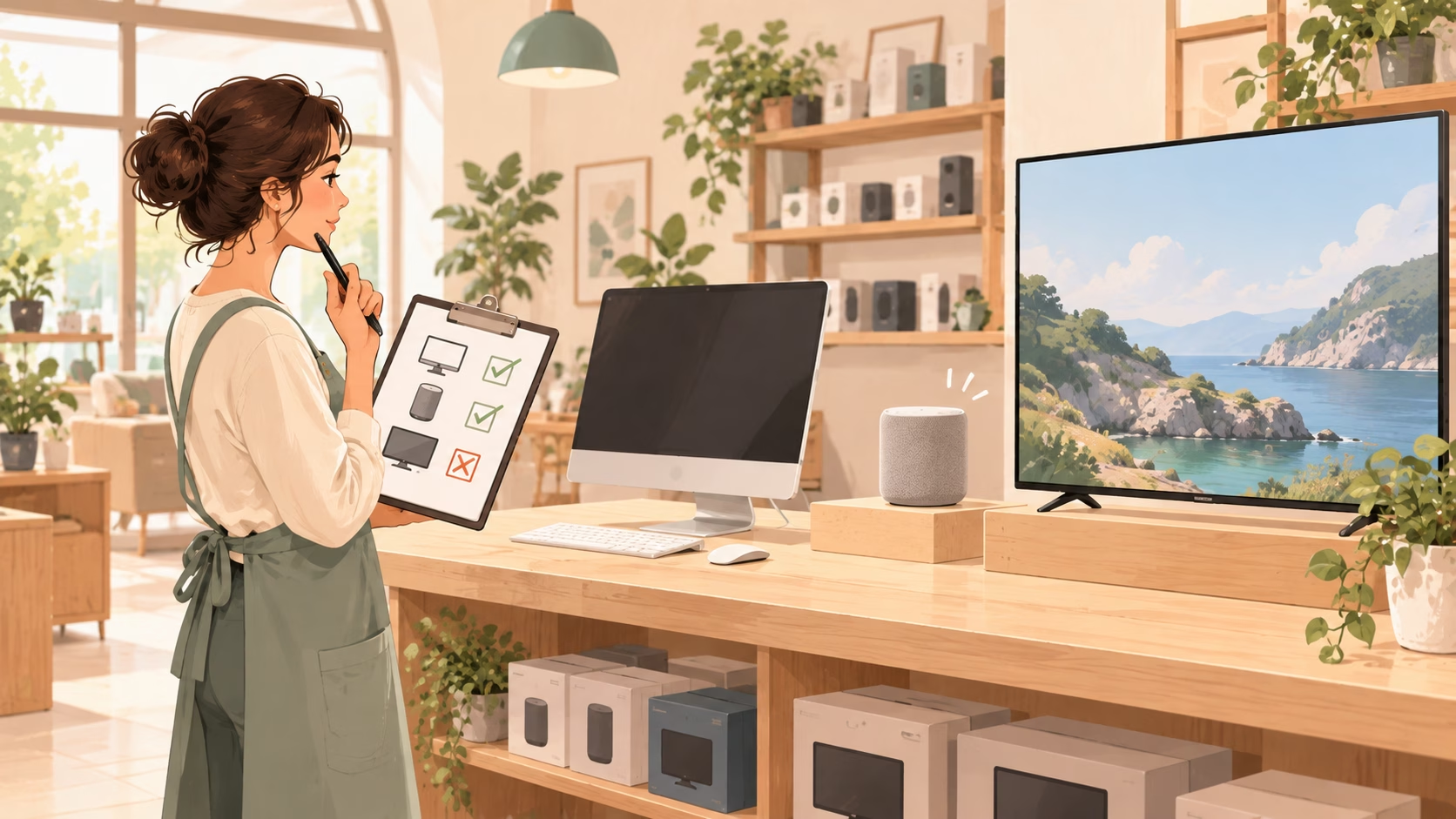
OptiSigns’ free-plan documentation limits supported devices to its specified players and Windows, Linux, Raspberry Pi and macOS devices. It excludes Amazon devices, other Android devices, smart TVs, ChromeOS, Apple TV/iOS and BrightSign from that free tier. An inexpensive Fire TV purchase therefore does not establish a free deployment.
The broader paid-plan hardware guide lists more device families. Match the device, plan and current operating system together. Do not rely on an old article that says only “works on Android.”
Trial and upgrade path
The separate 14-day trial includes features from Pro Plus and lower, two free screens and 1GB storage. It is not the same entitlement as the ongoing three-screen free plan. Test the exact workflow you need, then check whether it remains available after downgrading.
On the official pricing page, Pro is $12.50 per screen per month with monthly billing, while Pro Plus is $15. Pro adds controls such as approval workflow, folder security and advanced roles. That can matter when several staff members create content but only a manager should approve public prices.
Reuse suitable campaign assets rather than designing from scratch every day. Our guide to social-post creation tools can help with preparation, but resize and review those assets for the display. A phone-friendly square post is rarely a finished widescreen menu.
4. ScreenCloud: consider it for workplace communication

ScreenCloud belongs on the shortlist for an office, shared workspace or small multi-location team that wants centrally managed communication. Its current Studio pricing lists Core at $20 and Pro at $30 per screen per month, billed annually. Enterprise pricing requires a conversation with sales.
Monthly billing is $24 per screen for Core and $36 for Pro. The $20 and $30 figures are monthly equivalents on an annual commitment. Do not multiply the annual equivalent by one month and assume you can cancel after a month without further commitment.
Check the player before subscribing
ScreenCloud’s supported hardware guide includes dedicated media players and compatible smart TVs. Its help documentation distinguishes supported models from devices it recommends for new purchases. That is more useful than a blanket claim that any television or streaming stick will work.
A TV with the correct built-in player may avoid an external box. An ordinary HDMI display needs a compatible player. Confirm reboot behavior, remote management and the ability to return to signage after power loss. A screen that waits at a home menu each morning creates daily staff work.
For an office, keep the screen’s audience in mind. Public reception, an employee break room and a restricted operations room should not show the same information. Our cybersecurity and digital transformation guide provides context for separating convenience from access control.
Use the trial to prove the actual workflow
The official trial terms specify 14 days. They also say access ends and provided data is deleted unless you upgrade. Keep your original assets outside the trial account and do not treat trial storage as your only backup.
Test the daily update process with the person who will actually maintain the screens. Can they change an announcement without assistance? Can a second location receive a different playlist? What happens when an announcement expires? These questions matter more than a large integration count.
ScreenCloud may cost more than the entry options here. It is worth evaluating when its workflow fits staff communication, rather than choosing it solely for a single static menu. Our IT strategy guide offers a useful framework for tying the subscription to a real operating need.
5. TelemetryTV: useful when device control matters
TelemetryTV prices its software by device. The current Entry plan shows $9 per device per month with monthly billing or $8 on annual billing. Core shows $15 monthly or $13 on annual billing. Neither Entry nor Core requires a minimum number of devices.
That billing unit deserves attention. A device and a screen are often paired in a simple installation, but not necessarily in a multi-output system or video wall. Ask the vendor to confirm the supported topology and license count rather than assuming a player with several ports reduces the bill.
What a small business gets
Entry lists playlist scheduling, screen zones, apps, video storage and Canva. Core adds capabilities including device provisioning, tag filters, activity logs and API access. Elite is listed at $16 per device per month on an annual term, with a ten-device minimum. It is not a single-screen $16 upgrade.
The official pricing page offers a 30-day trial with Elite capabilities. Again, trial access can exceed the plan you will purchase. Write down which feature made the trial work and verify its paid-tier availability.
Hardware and offline behavior
TelemetryTV’s official FAQs list TelemetryTV Box OS, Android, ChromeOS, Windows, Linux, Fire OS and PWA options. The company says customers procure hardware separately and that it does not provide installation or device procurement services. Its FAQ also says it will not support or troubleshoot devices outside its recommended hardware list.
The player caches content locally, allowing playback to continue when connectivity is lost. That does not mean every live web page or changing data source remains fresh offline. Test your own playlist with the network disconnected before using it for critical messages.
Choose this route when you value playlists plus device administration and can manage hardware selection. If nobody on staff owns that responsibility, consider external help; our managed IT services guide explains the broader support decision.
6. Match the screen and hardware to the location
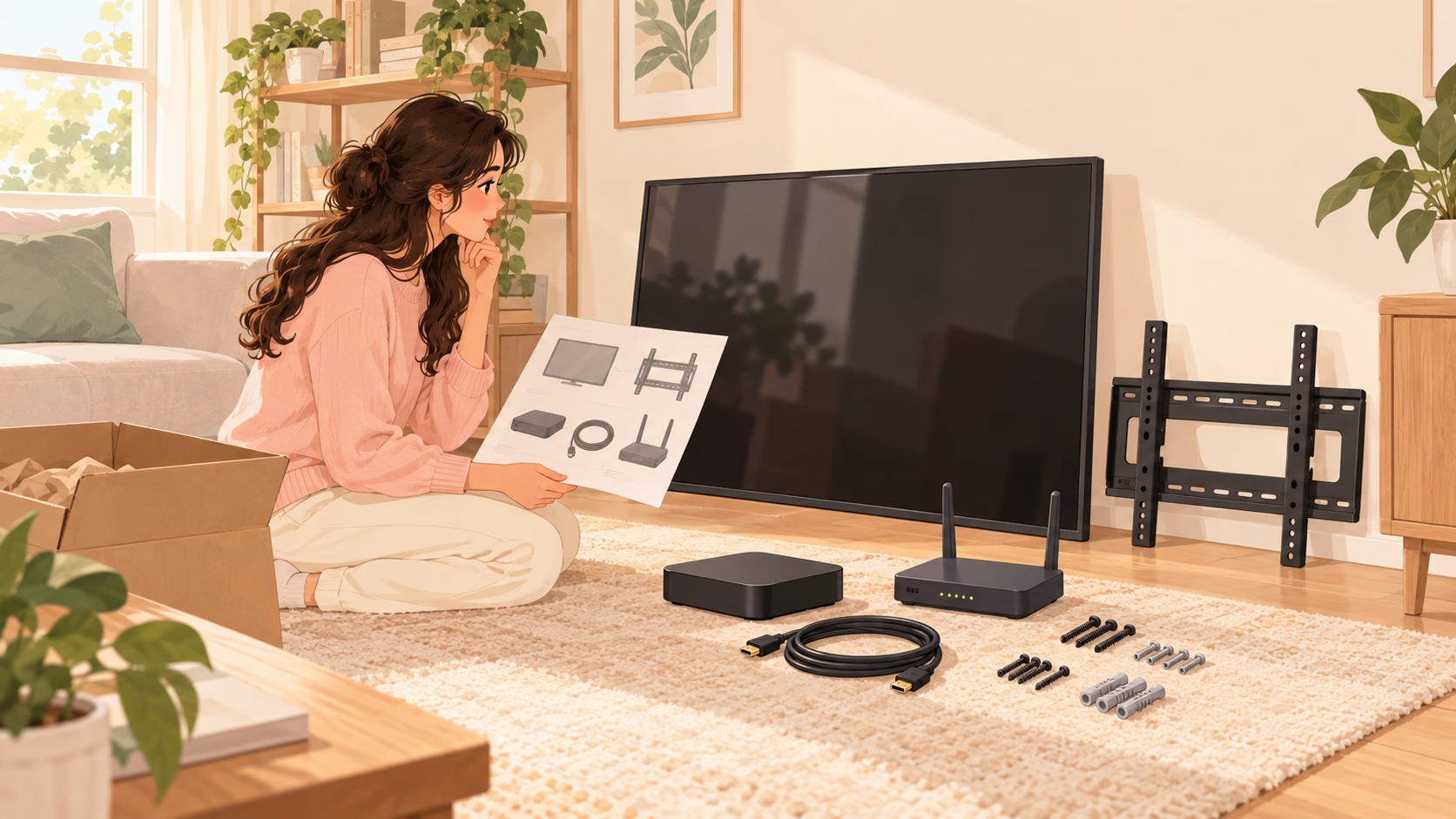
Most small installations need a display, a compatible player or built-in app, mounting hardware, safe power and connectivity. Software cannot fix glare, a loose HDMI connection or a TV mounted where customers cannot read it.
Menu boards, retail screens and office displays need different tests
For a menu board, check text from the queue’s normal viewing distance. Keep prices easy to scan and verify that scheduled breakfast and lunch changes happen correctly. Avoid hiding essential choices behind a long slideshow. Retail promotions can rotate, but a customer should understand each offer without waiting for a second cycle.
An office display may need multiple zones for announcements and operational data. More zones are not automatically better: shrinking each panel can make everything unreadable. For customer-facing design, our digital customer experience guide helps keep the visitor’s task ahead of visual novelty.
A consumer television may suit a short-hours pilot; check its warranty and intended operating conditions. Longer schedules, portrait mounting or difficult lighting may justify a commercial display. Ask the manufacturer about supported use rather than assuming every consumer TV is rated for continuous business operation.
- Record the exact TV model, player model, OS version and intended daily running hours.
- Check power restoration, player auto-start and remote recovery.
- Test Wi-Fi where the screen is mounted, not beside the router.
- Confirm landscape or portrait layout support before creating assets.
- Keep a spare cable and a documented restart process on site.
Signage is usually one-way communication. If you need customers to explore products or interact, a touchscreen kiosk is a different project. Our retail AR examples show another interactive direction, but neither AR nor touch belongs in the budget unless it solves a specific customer problem.
7. Calculate the total cost, not just the subscription
The headline license is only the recurring software portion. Your first-year budget should include displays, players, mounts, installation, cables, network work, content preparation and any paid features. Add tax and shipping when the actual quote is available.
As an illustration, three Yodeck Basic licenses at $8 total $24 per month or $288 over twelve months. Three OptiSigns Standard licenses at the monthly $10 rate total $30 per month or $360 over twelve months. Three ScreenCloud Core licenses at the annual $20 equivalent total $720 for a year. Three TelemetryTV Entry devices at $9 monthly total $27 per month or $324 over twelve months. These are arithmetic examples, not complete quotes or equivalent feature packages.
An annual commitment can include a hardware benefit or lower effective rate, but it also increases what you commit before the pilot is proven. Compare both the invoice timing and the useful life of any included player. Check cancellation, renewal and hardware-return terms directly before purchasing.
Content maintenance is a real operating cost
Someone must update menus, remove expired offers and check screens after a reboot. Assign a weekly owner and a backup. If content preparation takes hours, a low license price does not make the system cheap. A clear template and fewer messages can reduce that work without an expensive automation project.
Keep integrations separate from assumptions. A signage app that displays a spreadsheet is not proof of automatic inventory or POS synchronization. Our inventory automation overview can help frame the larger data task, but confirm the signage integration and update frequency independently.
For customer relationships, keep personal details in the appropriate system. Our small-business CRM comparison is a better starting point than putting customer records on a public screen. A promotion can invite people to join a loyalty program without showing their account data.
8. Run a one-screen pilot before a wider rollout
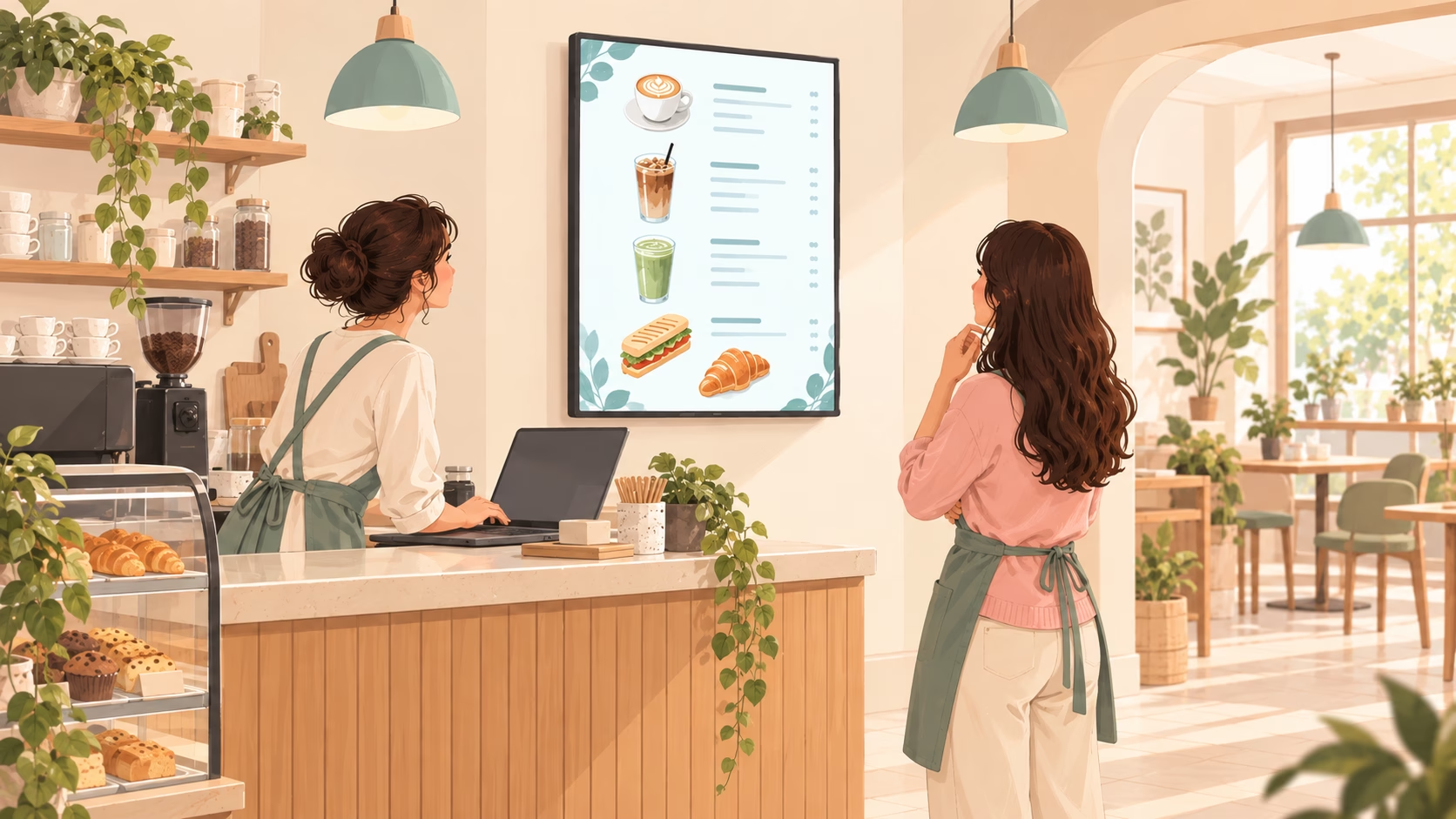
Choose one location and one measurable job. For a café, that might be reliable menu changes. For a shop, it might be displaying the correct current promotion. For an office, it might be replacing an outdated printed notice. Avoid starting with a network of screens and a complicated dashboard.
- Define the audience. Name who sees the screen and what they should understand. Our audience definition guide provides a transferable planning method.
- Build a small content set. Use readable text, consistent prices and assets sized for the display. If design is the bottleneck, our graphic designer hiring guide helps scope the work.
- Test normal and failed conditions. Reboot, disconnect the network and let a scheduled message expire. Watch the actual display, not only the dashboard preview.
- Teach the backup owner. Have them make a real change and restore the playlist using the written instructions.
- Review the purchase. Confirm the final plan, hardware, license count, renewal terms and full cost before expanding.
For readable designs, the W3C contrast guidance is a useful reference: its web accessibility criteria use at least 4.5:1 for normal text and 3:1 for large text. These are web criteria, not a certification for your physical display. Still check the screen under real lighting and at real viewing distances.
If you use a QR code, test it from where a customer stands. Provide enough time to scan and do not make the code the only way to understand an essential message. A link to a loyalty program can be useful; a code that is too small to scan is decoration.
Measure operational results before claiming sales impact: Were prices correct? Did updates reach the screen? How often did staff intervene? For a larger retail deployment, our retail IT consulting guide offers context for integration and support planning.
9. Frequently asked questions about digital signage solutions
What is the best free digital signage solution for a small business?
Yodeck is a sensible first comparison for one screen because its free plan includes Basic features. OptiSigns can support up to three screens free, but only on its specified free-plan devices, with branding and storage limits. Neither choice makes the display and player automatically free. Compare your exact hardware first. A free plan that excludes your smart TV may cost more to deploy than a modest paid plan using equipment you already own.
Can I use an ordinary smart TV?
Sometimes, if the vendor supports that exact television and operating system. “Smart TV” is not a compatibility specification. Some models can run the signage app directly; others need a supported external HDMI player. Before buying, check the vendor’s current device list, the TV’s intended operating conditions and whether it returns to signage after power loss. Test these behaviors during the trial rather than assuming that successful app installation proves daily reliability.
Does every screen need its own subscription?
Yodeck, OptiSigns and ScreenCloud publish the entry plans in this comparison per screen. TelemetryTV uses a per-device billing model. A straightforward deployment often pairs one device with one display, but multiple-output hardware and video walls need separate confirmation. Ask the vendor to quote your exact arrangement. Do not treat additional HDMI ports as proof that one license covers several independently scheduled screens.
Will content keep playing if the internet goes down?
It depends on the player and content type. TelemetryTV explicitly documents local caching and continued playback when connectivity is lost. Cached images and videos differ from live feeds that require fresh data. For every shortlisted system, disconnect the network during the pilot and observe your own playlist. Also check recovery when the connection returns. An offline loop of old prices may be worse than a blank display if staff assume the screen is current.
How much should I budget for a small setup?
Start with the verified software rates, then add your actual display and player quotes, mounting, power, network work and content preparation. The examples above cover software only. A free single-screen plan can lower recurring expense, while an annual plan may include hardware or a lower effective rate. Neither removes installation costs or the need for maintenance. Ask for a first-year total and a renewal-year total so a bundled offer does not hide the ongoing commitment.
Which option should I choose first?
Start by testing Yodeck for one basic screen, or OptiSigns if its device and free-tier rules fit your existing equipment. Include ScreenCloud when staff communication is the main job. Include TelemetryTV when device administration and playlists are priorities and you can handle hardware procurement. These are starting points, not universal winners. The best digital signage solution is the one that survives your real reboot, network and content-update tests without creating extra work for the team.