
Napkin AI is a text-to-visual AI tool that helps you turn written content into visuals like diagrams, infographics, charts, and business storytelling graphics. Instead of building designs from scratch, you can paste text, select parts of it, and generate visuals quickly, then edit and export them.
It’s mainly useful for:
- business storytelling
- presentations
- marketing explainers
- documentation visuals
- educational content
Napkin has a Free plan, plus two paid plans: Plus ($9/person/month) and Pro ($22/person/month).
Official product positioning: “Napkin turns your text into visuals so sharing your ideas is quick and effective.”
Napkin AI at a Glance
| Detail | Info |
|---|---|
| App Name | Napkin AI |
| Category | AI Visual Creation / Business Storytelling |
| Platforms | Web (napkin.ai) |
| Developer/Company | Second Layer, Inc. (per Terms & Privacy pages) |
| Pricing Model | Freemium + subscriptions |
| Free Trial | Free plan available |
| In-app purchases | Paid subscriptions |
| Key Exports | PPT, SVG (on paid plans) |
| Branding Removal | Available on Plus & Pro |
What is Napkin AI?
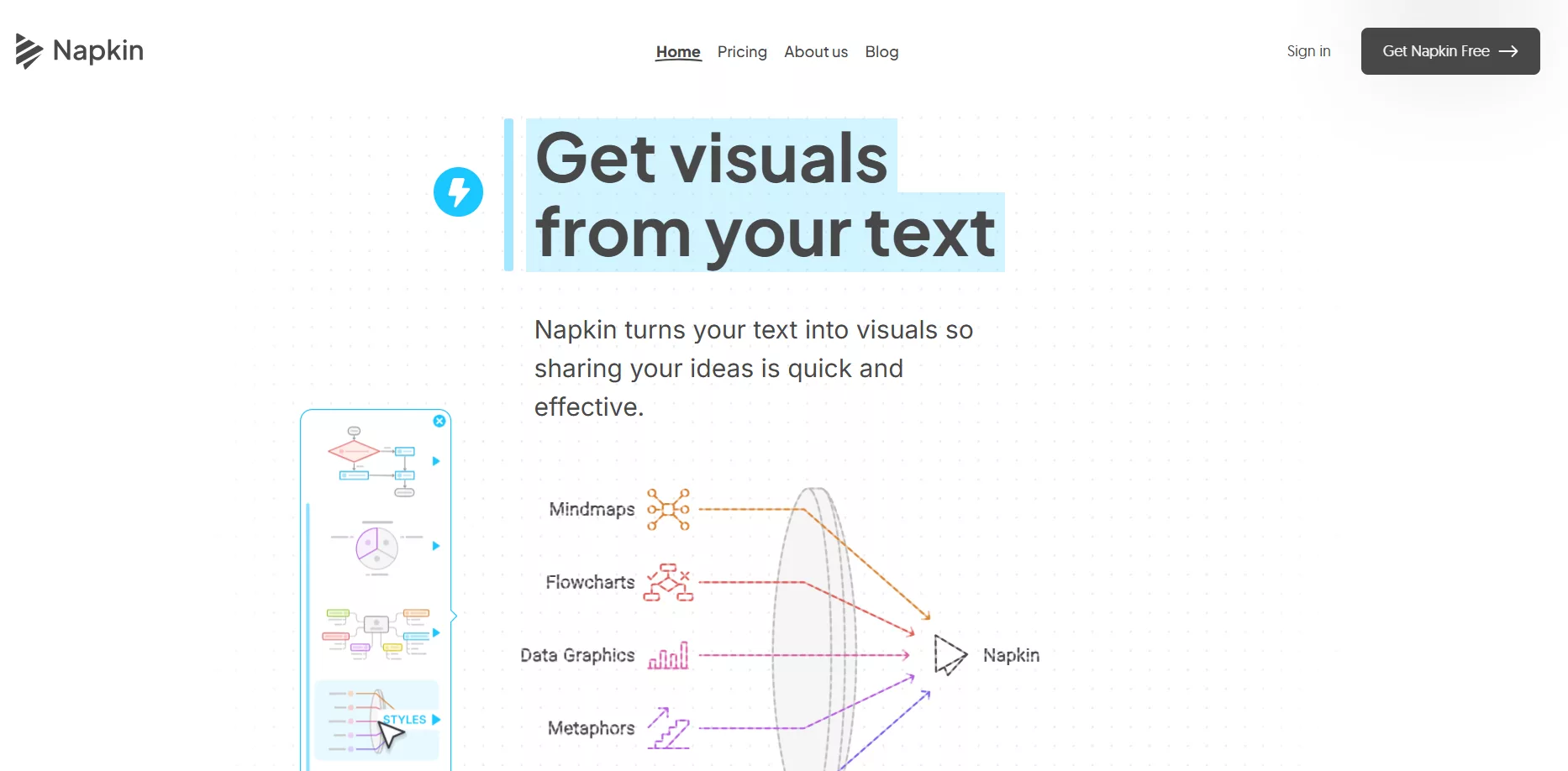
Napkin AI is an AI-powered visual generation platform designed to generate visuals from the text you provide. Its core idea is simple:
You write or paste your content → Napkin converts it into visuals → you edit and export.
Napkin emphasizes speed and clarity over heavy design workflows, aimed at people who need visuals to explain ideas quickly (business users, teams, educators, and creators).
Who Should Use Napkin AI?
Napkin AI is best if you:
- create presentations frequently and need supporting visuals quickly
- write blogs, reports, proposals, or internal docs, and want diagrams
- work in marketing or product and need explainers
- want “clean visuals fast” without spending hours designing manually
Real-world use cases
- turning meeting notes into a flow chart
- turning product documentation into diagrams
- turning strategy text into an infographic
- simplifying an idea into a visual slide
- generating visuals for business storytelling decks
Top Features of Napkin AI
What makes Napkin AI stand out is not the number of features it offers, but how intentionally each feature is designed around one goal: helping you explain ideas more clearly, faster, and with less effort. Instead of overwhelming you with tools, Napkin focuses on the moments where people usually get stuck, turning written thoughts into visuals that actually make sense.
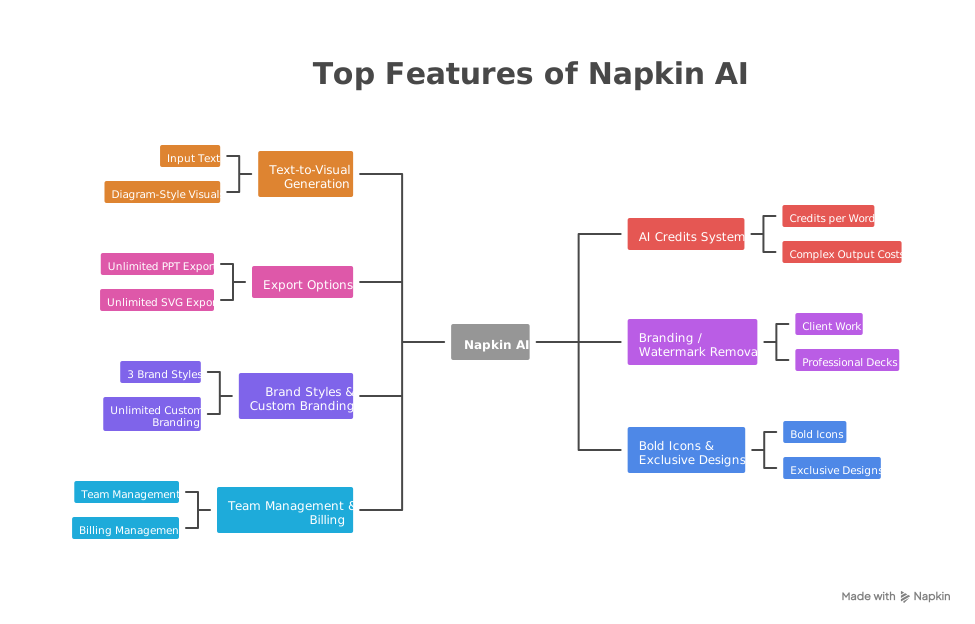
Below is a detailed, experience-based look at Napkin AI’s core features and how they show up in real usage.
1) Multiple Visual Styles for the Same Idea
One practical strength of Napkin AI is that it doesn’t lock you into a single visual outcome. When you generate a visual from text, the platform allows you to explore different visual interpretations of the same idea. This is useful when you’re unsure how best to present information or when different audiences need different levels of clarity.
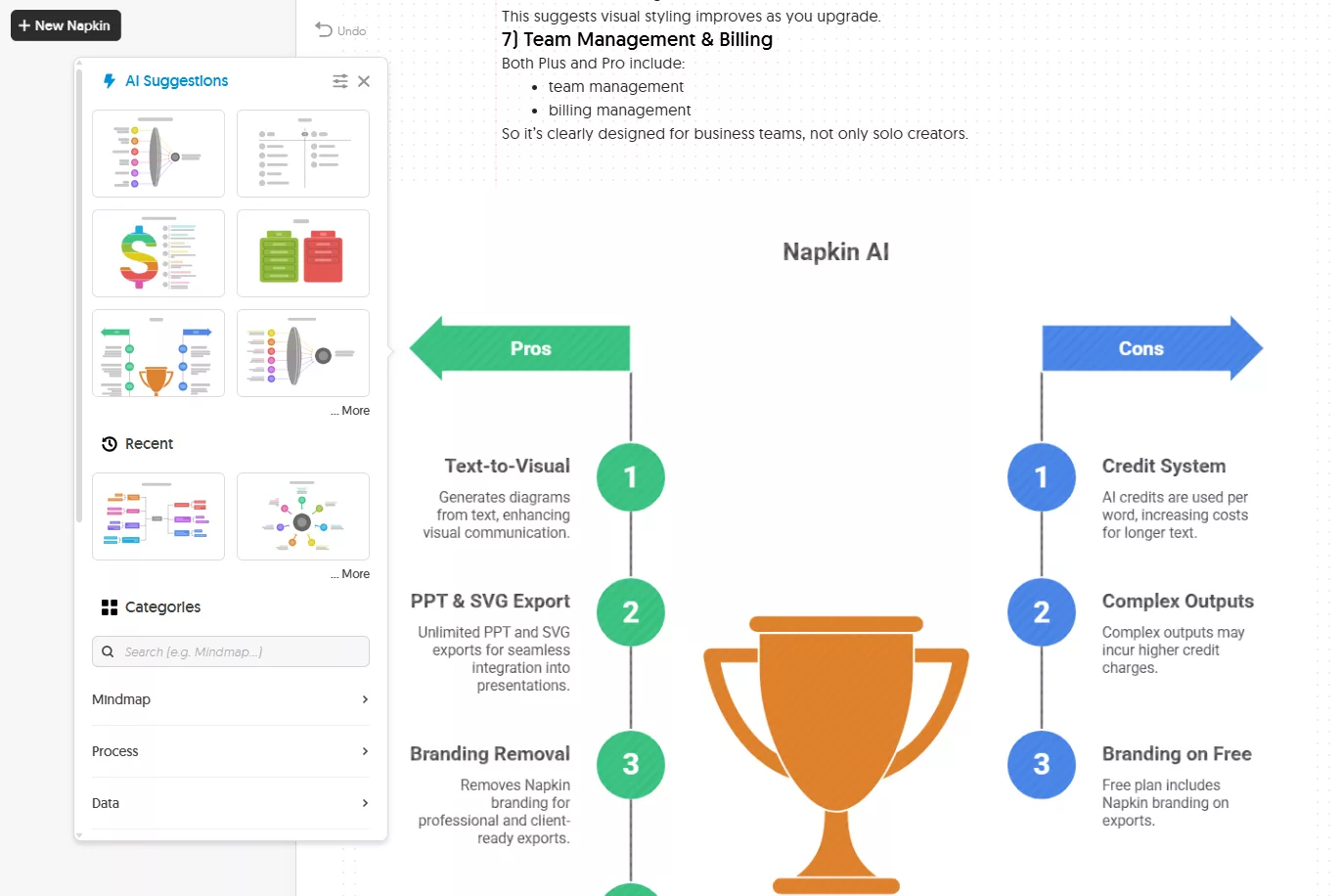
In real usage, this feels like brainstorming visually. You’re not stuck fixing one output. You can choose the version that communicates your idea most clearly.
2) Built-In Iconography That Improves Clarity
Napkin AI includes bold, built-in icons that automatically appear in visuals where they make sense. These icons aren’t decorative. They’re functional, helping viewers understand relationships and concepts faster.
This feature matters because it removes the need to manually search for icons or worry about visual balance. The visuals feel complete without additional effort, especially when explaining processes, steps, or systems.
3) Brand Styles for Consistent Visual Identity
Napkin AI supports brand styles, allowing users to maintain consistent colors and visual themes across multiple visuals. Instead of manually adjusting each graphic, you can apply predefined brand styles so everything looks aligned.
For professionals, this creates a sense of polish. Over time, your visuals start to look like part of a system rather than one-off graphics.
4) Custom Font Upload (Pro Plan Feature)
For teams and businesses that care deeply about brand identity, Napkin AI allows custom font uploads on higher-tier plans. This ensures that visuals don’t just explain ideas well, but also align with existing brand guidelines.
This feature is subtle but important. It bridges the gap between “AI-generated” and “brand-approved” output, which is often where AI tools fall short.
5) Branding Removal for Professional Sharing
Napkin AI gives paid users the option to remove Napkin branding from exported visuals. This is especially relevant for client presentations, internal strategy decks, and external-facing documents.
It allows the visuals to stand on their own, without signaling the tool used behind the scenes. This keeps the focus on the idea, not the software.
6) Credit Top-Ups for Flexible Usage
Napkin AI offers the ability to top up AI credits on higher plans. This is useful for teams or individuals who go through periods of heavier usage and don’t want their workflow interrupted.
Instead of forcing an upgrade immediately, Napkin gives users flexibility. That makes the pricing model feel practical rather than restrictive.
7) Enterprise Access and Scalability
Napkin AI also supports enterprise-level access through a contact-based plan. This signals that the tool is designed to scale beyond individual users, supporting larger teams with structured billing and access control.
For organizations, this makes adoption easier and more controlled, especially when visuals are part of regular documentation or presentations.
8) Web-Based Access With No Installation
Napkin AI runs entirely in the browser. There’s no software to install, no updates to manage, and no device-specific setup. This makes it accessible across teams and systems without technical overhead.
From a user perspective, this lowers friction. You can log in and work from anywhere without setup delays.
9) Focus on Business and Educational Use Cases
Napkin AI is clearly positioned toward business storytelling, education, and professional communication rather than casual graphic design. Its features reflect that focus.
The visuals prioritize explanation over decoration, which makes them especially useful in presentations, reports, training materials, and internal documentation.
Each feature feels like it exists to remove friction from explaining ideas. And when features consistently solve real communication problems, the tool naturally earns its place in everyday workflows.
10) AI Architecture Built for Idea Interpretation
Napkin AI’s underlying AI architecture is designed to interpret meaning, not just format text. Instead of treating words as raw input, the system analyzes how ideas relate to each other. It looks for structure such as sequences, hierarchies, cause-and-effect relationships, and grouped concepts.
From a user’s point of view, this means the visuals usually feel logical rather than random. The AI isn’t just decorating your text. It’s attempting to mirror how a human might sketch the idea on paper. This architecture is what allows Napkin to work well even when your text isn’t perfectly polished.
11) Multilingual Magic That Expands Accessibility
One of Napkin AI’s practical strengths is its multilingual support. You’re not limited to writing in English to generate visuals. The platform can process content written in multiple languages and still convert it into structured visuals.
This is especially useful for global teams, educators, and businesses working across regions. You can explain ideas in the language you’re most comfortable with and still benefit from the same visual clarity. It quietly removes a barrier that many AI tools still struggle with.
12) AI-Powered Content Generation That Feels Assistive
Napkin AI doesn’t try to replace your thinking. Instead, it supports it.
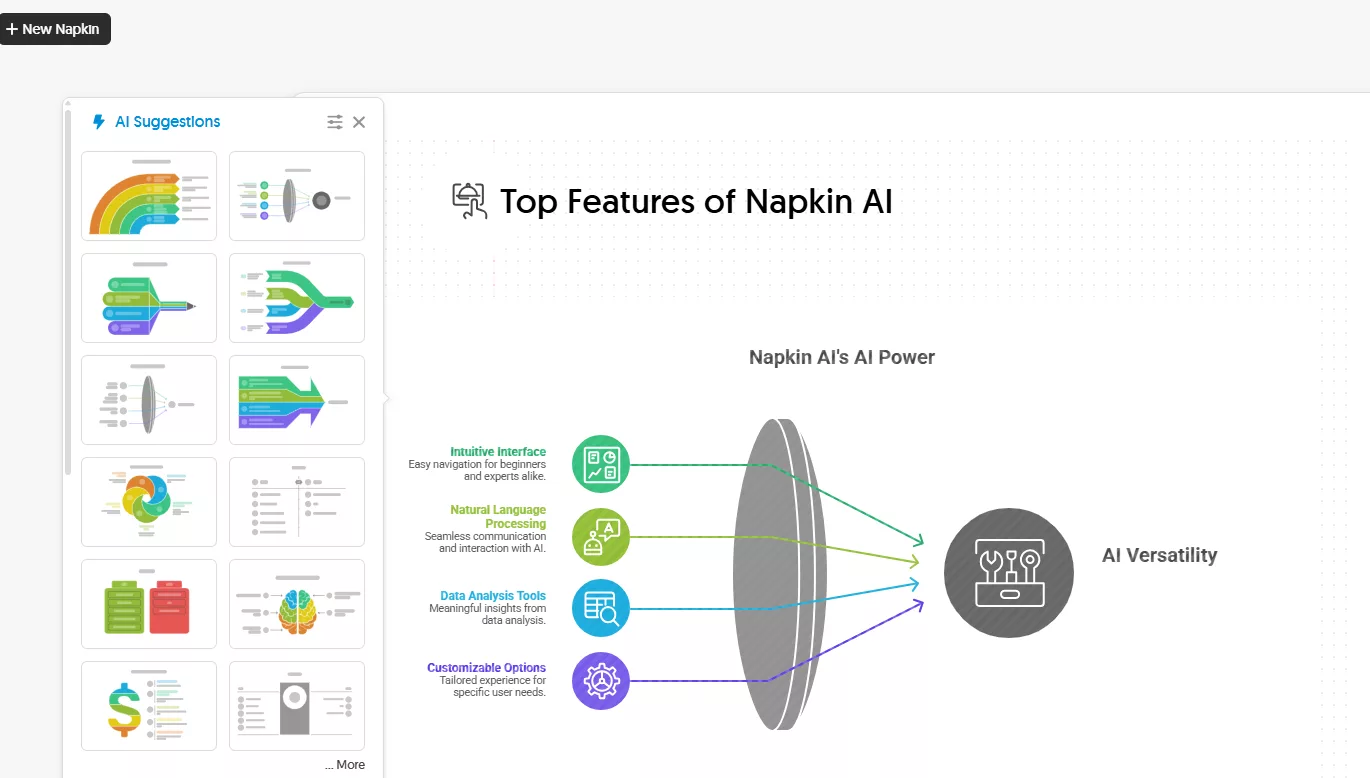
When generating visuals, the AI helps organize and present your content in a way that feels assistive rather than intrusive. It fills in visual structure while leaving the intent of the message untouched. This balance is important. You stay in control of the idea, while the AI handles the heavy lifting of presentation.
For many users, this makes the experience feel collaborative. You bring the idea. Napkin helps you explain it better.
13) Export Versatility for Real-World Workflows
Napkin AI’s export capabilities are designed with real workflows in mind. Instead of limiting you to image downloads, it supports formats that are actually used in professional environments.
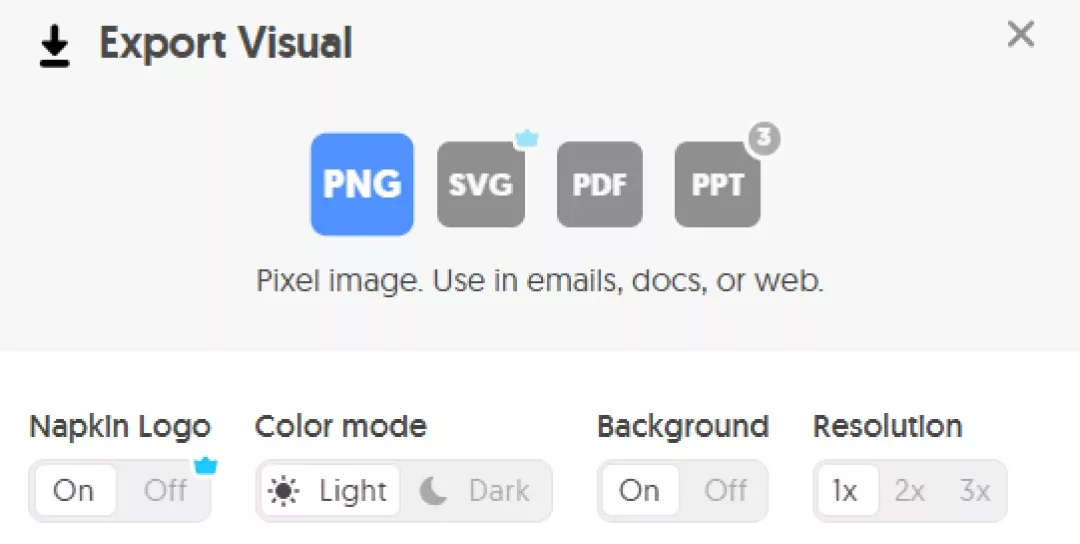
Being able to export visuals as PowerPoint slides or scalable SVG files means your work doesn’t get stuck inside the tool. You can move seamlessly from idea creation to presentation, documentation, or sharing without rebuilding anything.
This export versatility is one of the reasons Napkin fits naturally into business and educational settings. It respects how people already work.
How to Use Napkin AI Tool: Step-by-Step Instructions For Generating Images
Using Napkin AI feels less like learning a new design tool and more like improving how you already explain ideas. The entire experience is built around one simple habit most of us already have: writing things down. Napkin takes that familiar habit and adds a visual layer to it, without turning the process into something technical or intimidating.
Below is a complete, experience-driven walkthrough that explains each step and how people actually use it in real work.
Step 1: Creating Your Account and Entering the Workspace
Getting started begins on Napkin’s web platform. Account creation happens on desktop, and the process is intentionally lightweight. You can sign up using your Google account for quick access or register using an email and password if you prefer a traditional login.
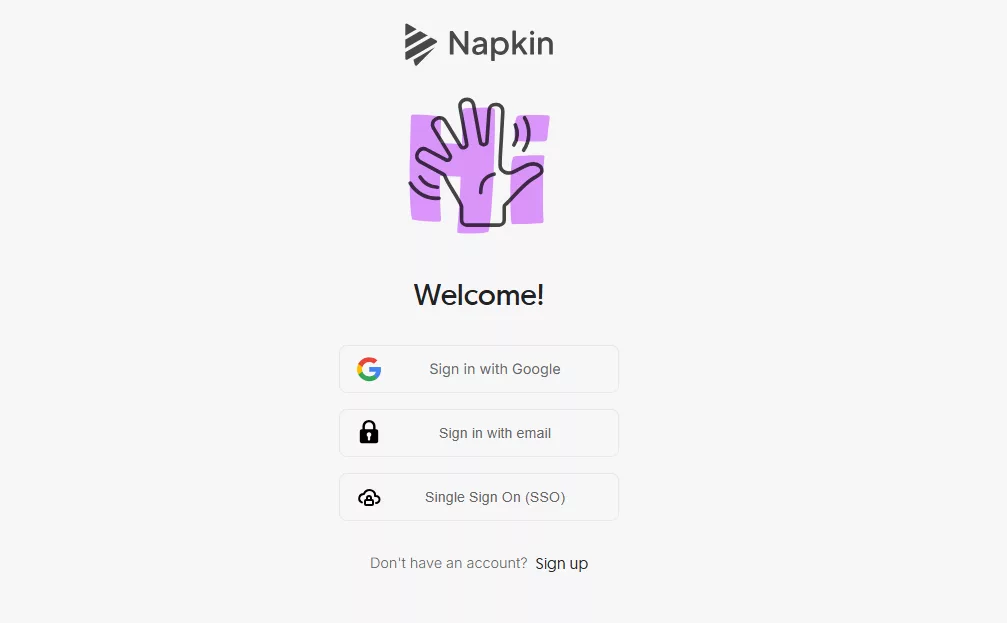
What stands out immediately is what doesn’t happen after sign-up. There’s no forced tutorial, no cluttered dashboard, and no overwhelming list of tools. You’re dropped straight into the workspace. This sets the tone early. Napkin assumes you already know how to think, write, and explain things. It’s not trying to teach you design theory; it’s simply giving you a smarter way to express ideas visually.
Step 2: Understanding the “Text-First” Philosophy
Before doing anything else, it helps to understand how Napkin thinks.
Most design tools ask you to start with a blank canvas, a template, or a layout. Napkin flips that approach. Here, text comes first. The tool is designed around the belief that good visuals come from clear thinking, not from decorative elements.
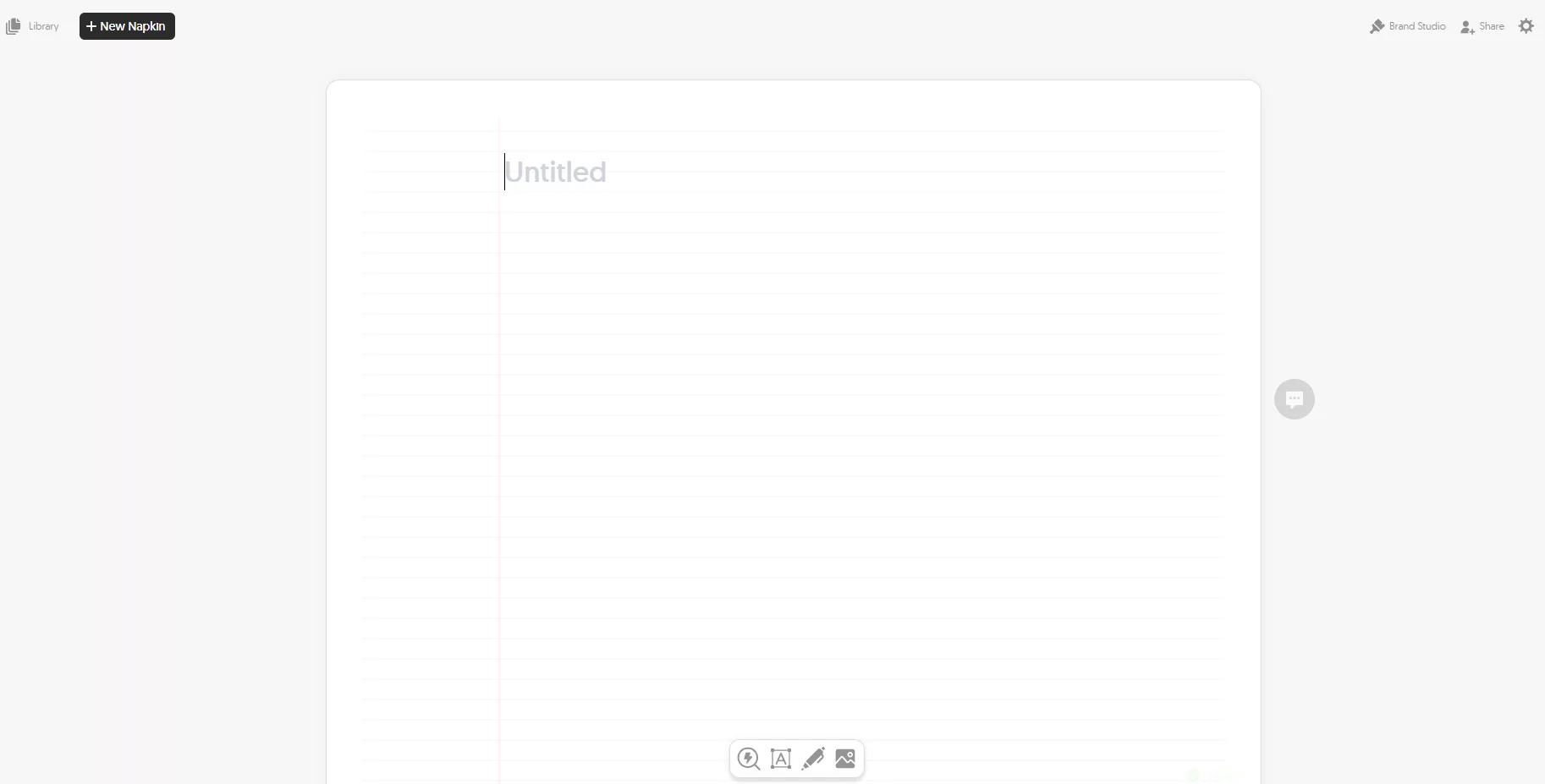
In practical terms, this means you start by writing or pasting text. This could be meeting notes, a product explanation, a process description, a strategy outline, or even rough thoughts you haven’t polished yet. Napkin doesn’t expect perfect writing. It just needs enough structure to understand relationships between ideas.
This approach feels especially natural for people who already spend time writing documents, emails, or presentations.
Step 3: Adding and Structuring Your Text
Once you’re in the workspace, you can type directly or paste content from elsewhere. There’s no strict format you must follow, but clarity helps.
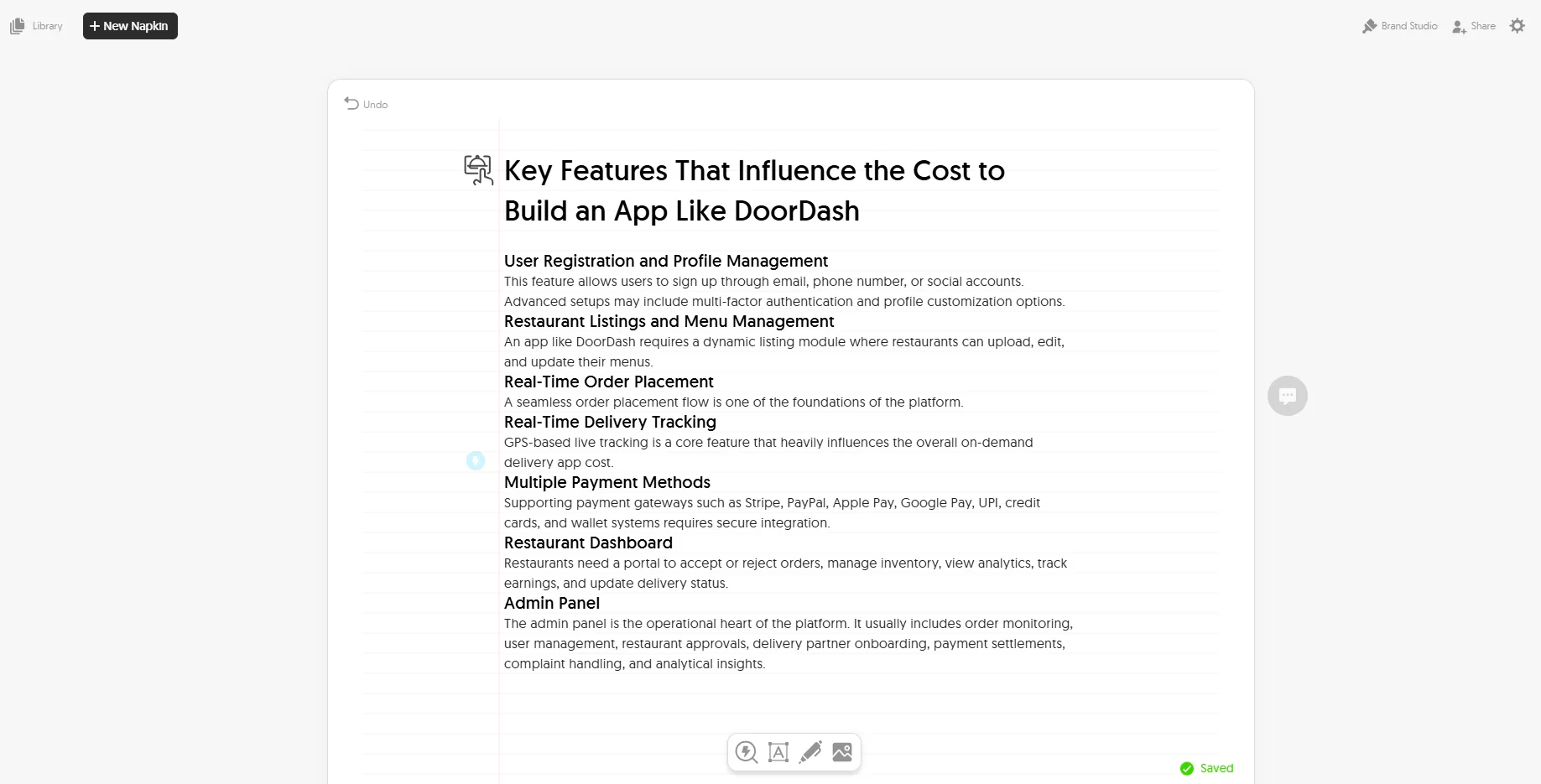
Short paragraphs, simple sentences, and logically grouped ideas work best. For example, writing a sequence like “problem → solution → outcome” or listing steps in a process gives the AI clearer signals. You don’t need to think in design terms. You only need to think in explanatory terms.
At this stage, Napkin behaves like a smart reader. It’s preparing to interpret your words, not decorate them.
Step 4: Selecting Text to Turn Into a Visual
One of the most practical aspects of Napkin AI is that you don’t have to visualize everything at once. You choose exactly which part of your text you want to convert into a visual.
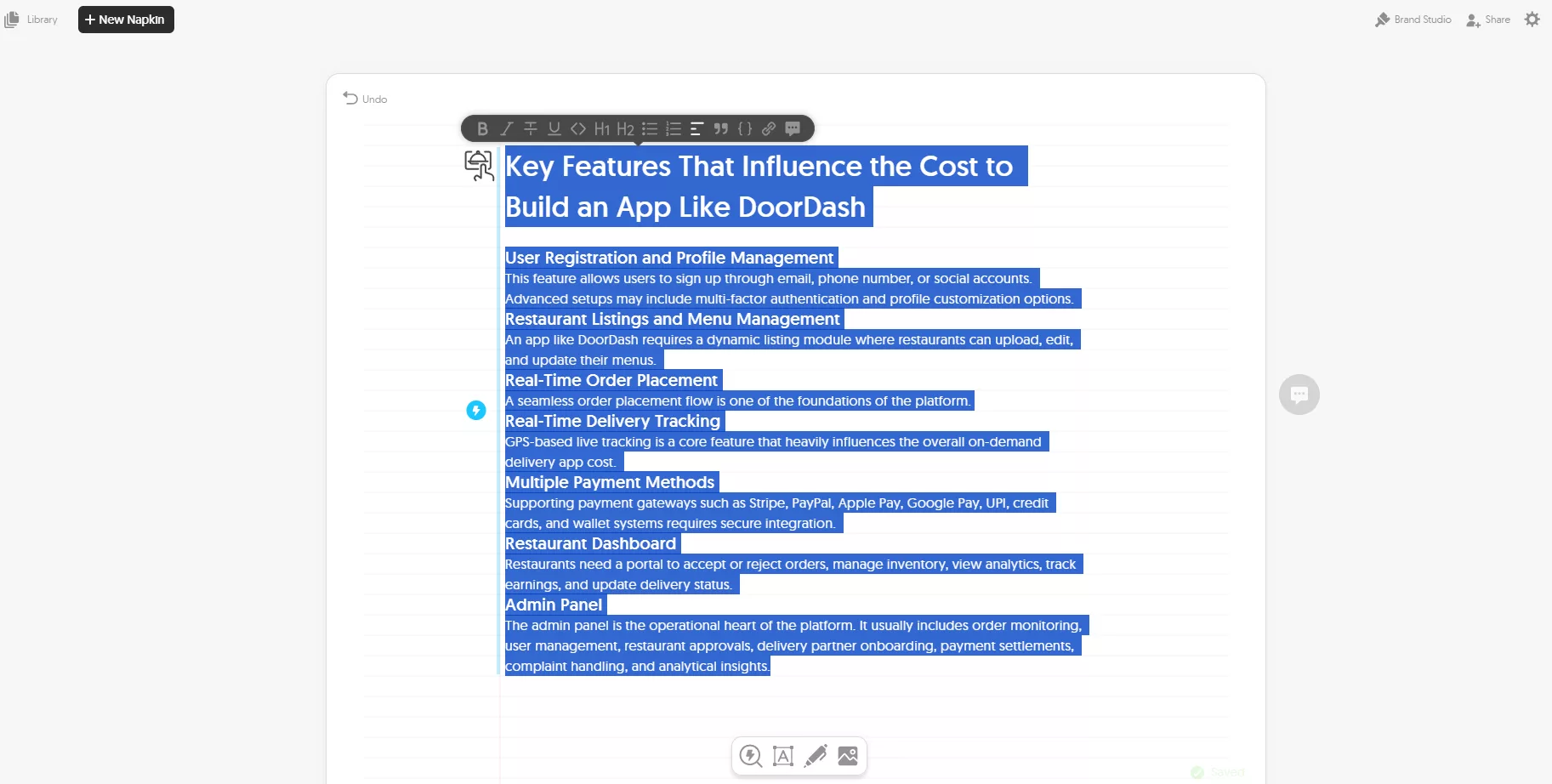
You simply highlight a sentence, paragraph, or section and trigger visual generation. This selective approach matters more than it first appears. It allows you to focus on one idea at a time, which usually leads to clearer visuals and better results.
From a usage perspective, this also encourages intentional thinking. Instead of generating visuals blindly, you ask yourself, “Which part of this explanation would benefit most from a visual?” That question alone improves communication quality.
Step 5: Generating the Visual and Interpreting the First Output
Once you generate a visual, Napkin produces a structured layout based on your text. The output might look like a flow diagram, a concept map, or an infographic-style structure, depending entirely on what you wrote.
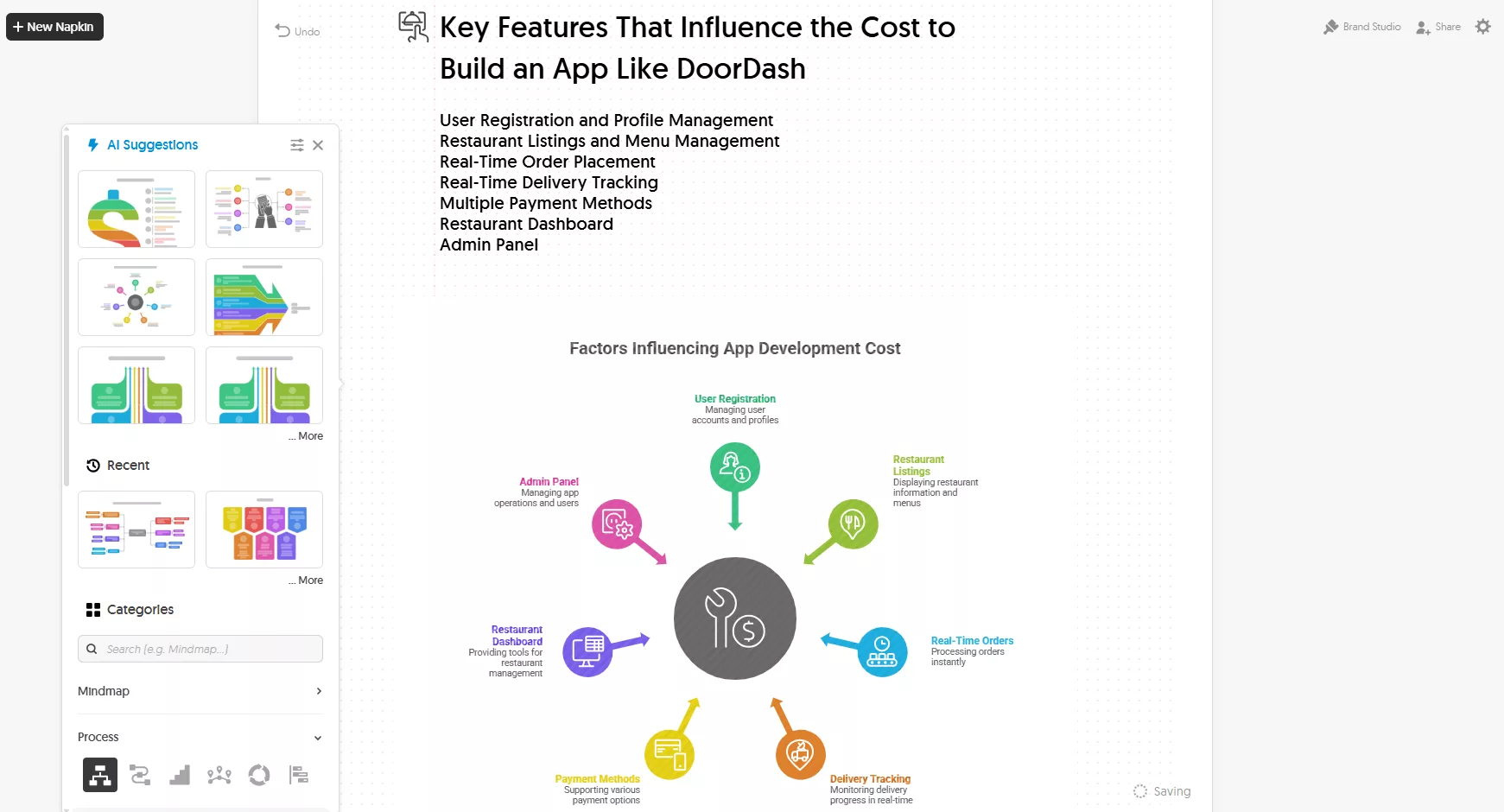
The first result is rarely meant to be final. It’s better to think of it as a strong draft. In most real-world use cases, the visual captures the logic correctly, even if small adjustments are needed.
This is where Napkin feels practical rather than flashy. It prioritizes clarity over visual effects. The goal is to help someone understand your idea quickly, not to impress them with decoration.
Step 6: Refining the Visual for Clarity
After the visual appears, you can begin refining it. This step is less about design skills and more about communication judgment.
You may choose to adjust labels, simplify wording, rearrange elements slightly, or remove anything that feels unnecessary. The interface encourages small improvements rather than deep redesigns, which keeps the process efficient.
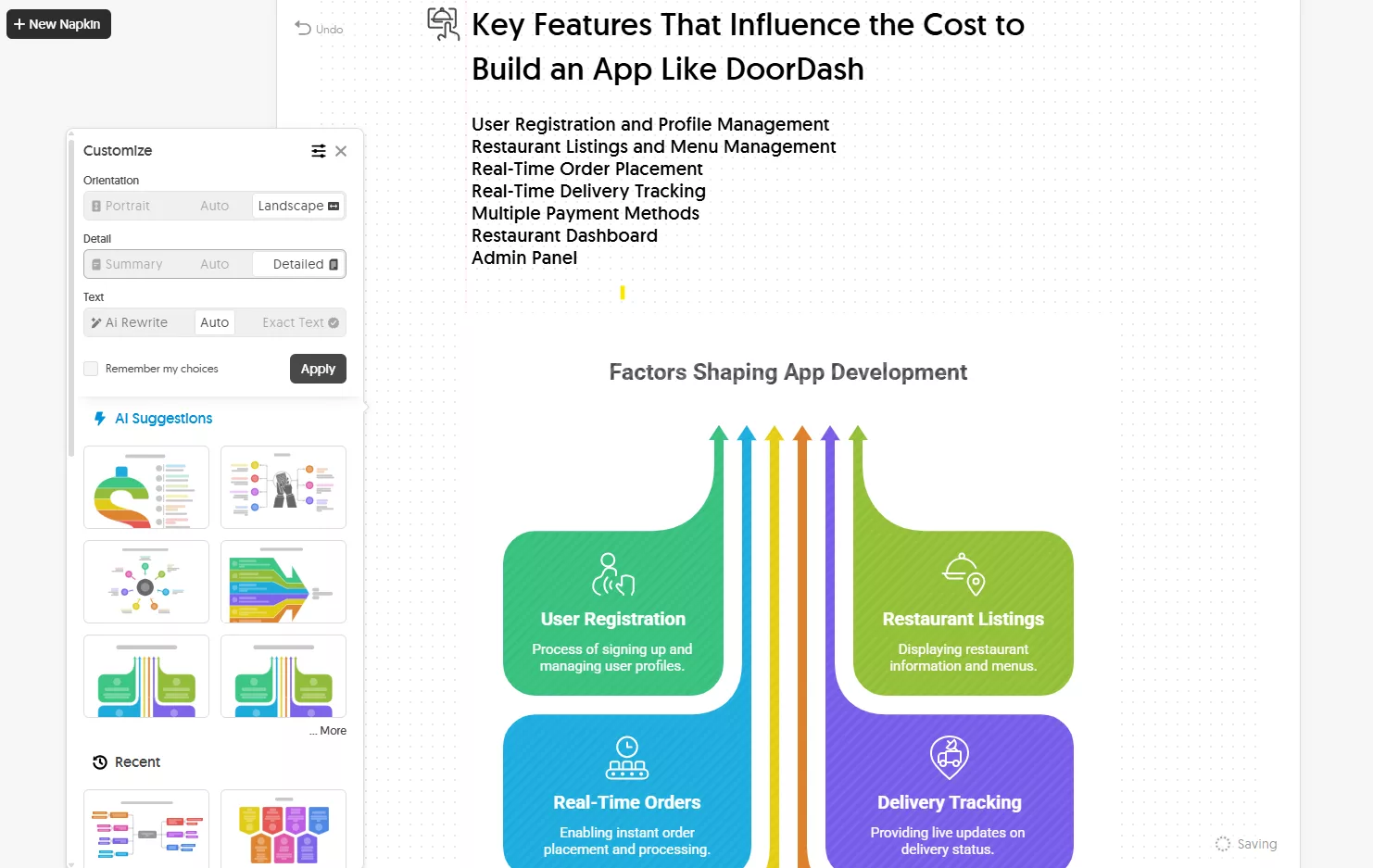
This stage often feels like editing a sentence rather than designing a graphic. You’re asking yourself whether the idea is easier to understand now than it was before.
Step 7: Applying Branding and Visual Consistency
If you’re on a paid plan, branding becomes an important part of the workflow. This is where Napkin transitions from being a thinking tool to a professional output tool.
You can remove Napkin branding, apply brand styles, and ensure visual consistency across your exports. On higher plans, custom fonts can also be uploaded, which is especially useful for teams and businesses that care about visual identity.
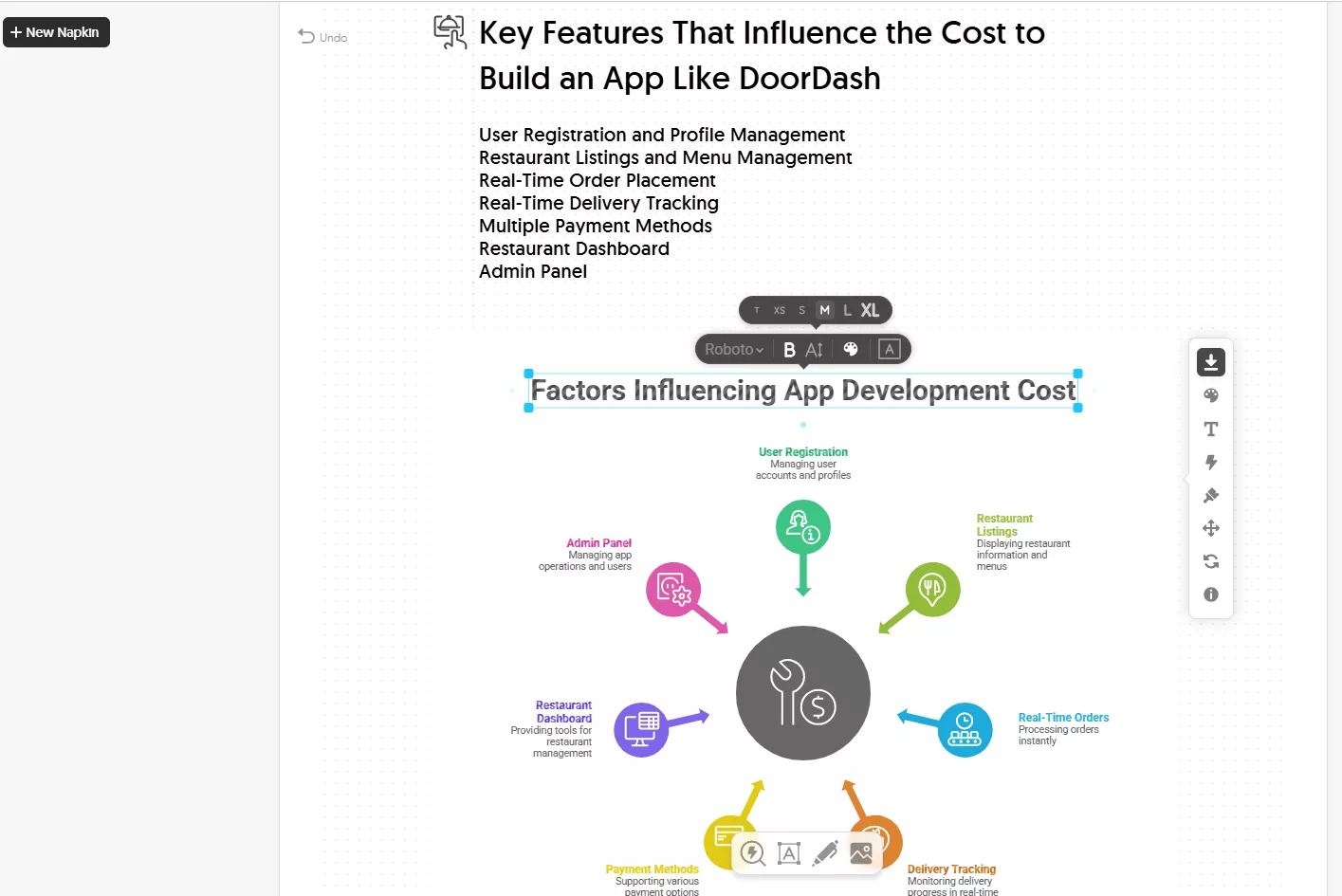
This step doesn’t change the idea itself. It changes how confidently you can share it in presentations, reports, or client-facing materials.
Step 8: Exporting Your Visual for Real Use
Once everything looks right, exporting is straightforward. Napkin supports exporting visuals into formats that fit real workflows, especially PowerPoint and SVG.
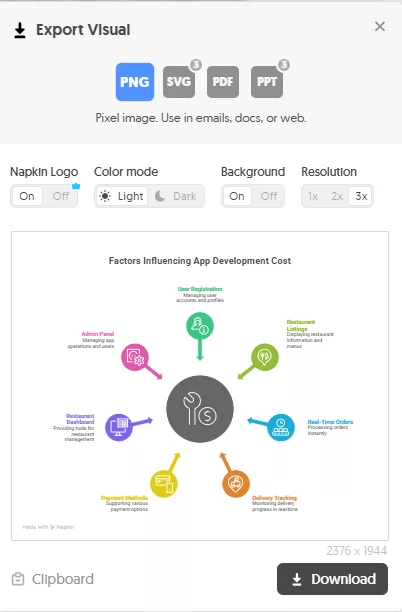
This matters because it eliminates rework. Instead of recreating visuals inside presentation software, you can drop them directly into your deck or document. For many users, this is where the time savings become very obvious.
Exporting feels like the natural conclusion of the thinking process rather than a technical handoff.
Step 9: Using Napkin AI as a Repeated Workflow
Over time, Napkin AI becomes less of a “tool you open occasionally” and more of a habitual part of explaining ideas. Many users naturally start writing with visualization in mind, structuring their thoughts more clearly from the beginning.
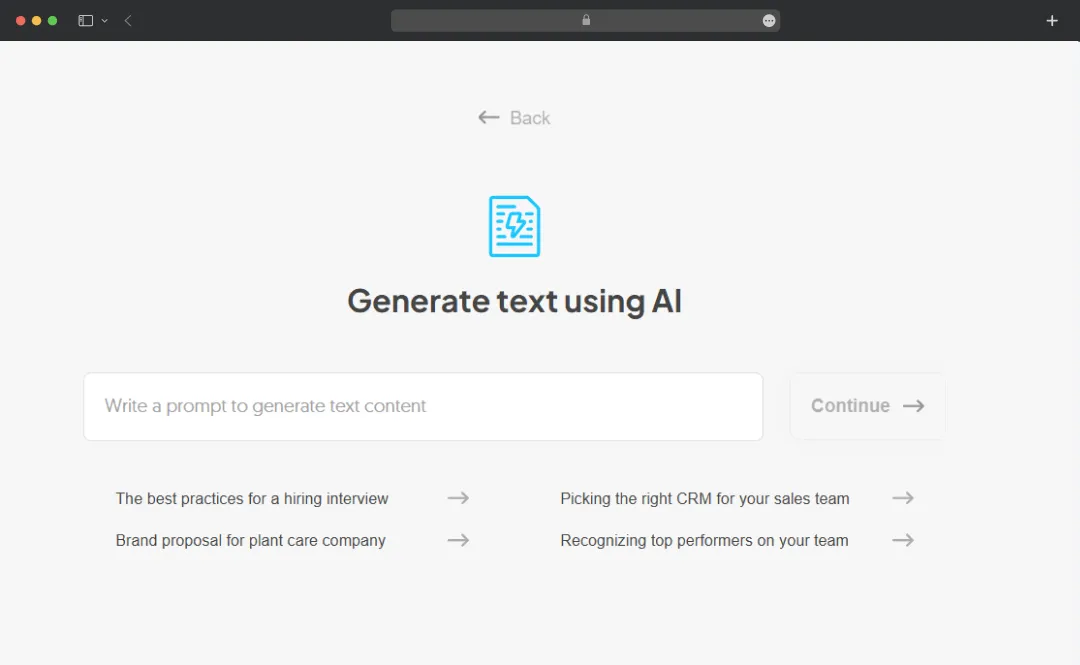
The experience improves with repetition. The more you understand how Napkin interprets text, the better your inputs become, and the better the outputs feel. It’s a quiet learning curve, not a steep one.
The biggest strength of Napkin AI is not that it generates visuals, but that it encourages clearer thinking. When a tool improves both speed and clarity without adding complexity, it earns its place in a real workflow.
Pricing & Subscription Plans of Napkin AI
Napkin has 3 plans: Free, Plus, and Pro.
| Plan | Price | Key Included Features |
|---|---|---|
| Free | $0 | Free forever plan (limited features) |
| Plus | $9/person/month | 10,000 AI credits/month, unlimited PPT+SVG export, 3 brand styles, bold icons, remove Napkin branding, team mgmt & billing |
| Pro | $22/person/month | 30,000 AI credits/month, exclusive designs, unlimited custom branding, upload fonts, team mgmt & billing, optional credit top-ups |
Napkin also hints at the Enterprise plan via “Contact Us” on the pricing page.
Final Say by AppsInsight on Napkin AI
Napkin AI proves that powerful tools don’t need to be complicated. It takes a problem that many professionals face, explaining ideas clearly, and solves it in a calm, thoughtful way. By starting with text instead of design, Napkin AI fits naturally into how people already work, whether they’re creating presentations, documenting processes, or sharing strategies with a team.
What stands out most is its balance. The AI is helpful without being intrusive, the features are focused without feeling limited, and the outputs are professional without demanding design skills. Export options like PPT and SVG make the tool genuinely useful beyond the platform, while branding and team features support real business workflows.
From AppsInsight’s perspective, Napkin AI is not about creating flashy visuals. It’s about improving clarity, saving time, and helping ideas land better. For individuals and teams who value clear communication over complex design, Napkin AI is a reliable, well-thought-out choice that earns its place in a modern productivity stack.
AppsInsight Rating
| Category | Rating | Experience Summary |
|---|---|---|
| Features | ⭐⭐⭐⭐☆ (4/5) | Strong, focused features built around turning text into clear visuals without unnecessary complexity |
| Ease of Use | ⭐⭐⭐⭐☆ (4/5) | Beginner-friendly workflow with a smooth learning curve and minimal setup |
| Pricing Value | ⭐⭐⭐⭐☆ (4/5) | Fair pricing for individuals and teams, especially considering AI credits and export options |
| Branding & Export | ⭐⭐⭐⭐⭐ (5/5) | Excellent export flexibility (PPT & SVG) with professional branding controls |
| Team Support | ⭐⭐⭐⭐☆ (4/5) | Well-suited for teams with shared access, billing, and scalable usage |
Overall Score: 4.3/5
FAQs
What is Napkin AI, and what is it mainly used for?
Napkin AI is a web-based AI tool designed to turn written content into clear, structured visuals such as diagrams, flows, and infographic-style graphics. It is mainly used for business storytelling, presentations, documentation, and educational explanations. Instead of starting with templates or design elements, Napkin AI works from text, making it especially useful for professionals who already write reports, strategies, or notes and want to visually explain ideas without learning complex design software.
Is Napkin AI suitable for users with no design background?
Napkin AI is built specifically for non-designers. The platform does not require knowledge of layout, typography, or visual design principles. Users simply write or paste text, select the portion they want to visualize, and let the AI generate a structured visual. Editing is focused on clarity rather than design complexity. This makes Napkin AI ideal for professionals, educators, and teams who want effective visuals without spending time learning traditional graphic design tools.
How does Napkin AI generate visuals from text?
Napkin AI uses AI models that analyze the structure and meaning of your text rather than just formatting it. The system looks for relationships such as sequences, hierarchies, and cause-and-effect patterns, then converts those into visual layouts. This approach helps the generated visuals feel logical and easy to understand. The AI acts as an interpreter of ideas, turning written explanations into visuals that reflect how a human might sketch the same concept on a whiteboard.
What export options does Napkin AI offer for professional use?
Napkin AI supports professional export formats designed for real-world workflows. Paid plans allow users to export visuals as PowerPoint (PPT) files and scalable SVG files. PPT exports make it easy to place visuals directly into presentations, while SVG exports are useful for documents, websites, and high-quality printing. These export options help users avoid recreating visuals in other software, saving time and ensuring consistency between idea creation and final delivery.
Is Napkin AI suitable for team and business environments?
Napkin AI is well-suited for team and business use. Its paid plans include team management and centralized billing, making it easier to manage access across multiple users. Branding controls, export options, and scalable usage support professional collaboration. The platform’s focus on clarity and consistency makes it particularly useful for teams creating presentations, training materials, internal documentation, or client-facing content where visual communication plays an important role.